
Fix: Music Recognition (Shazam) Not Working iOS 26

The integrated Music Recognition feature in iOS, powered by Shazam, is a convenient way to identify songs from your Control Center, Lock Screen,…

The integrated Music Recognition feature in iOS, powered by Shazam, is a convenient way to identify songs from your Control Center, Lock Screen, or even the Action Button. However, after updating to iOS 26, many users have discovered that these shortcuts become completely unresponsive, even though the main Shazam app may still work correctly, as described in this Apple Community discussion.
This issue suggests that the problem isn’t with the song recognition service itself, but with the software link between the iOS system shortcuts and the service, which can be broken during the update process.
Why Music Recognition Stops Working
Music Recognition in iOS is more than just the Shazam app; it’s a system‑level service that can be triggered from various places. When you tap the button in Control Center, iOS activates this service, which uses the microphone to listen and sends the audio fingerprint to Shazam’s servers for identification. After the iOS 26 update, a software glitch can corrupt the connection between these system triggers (like the Control Center button) and the underlying recognition service.
This corruption is why the buttons may seem dead or unresponsive, while opening the Shazam app directly still works perfectly. Other potential causes include incorrect microphone permissions that were reset during the update, or network connectivity issues preventing the service from reaching Shazam’s database. If you suspect the problem is due to network connectivity, you may want to fix Wi‑Fi issues.
How to Fix Music Recognition on iOS 26
Follow these steps to diagnose and repair the link between your iPhone’s shortcuts and the Music Recognition service.
1. Check Microphone Permissions
The Music Recognition service needs access to your microphone to listen for music. The iOS update may have reset this permission.
- Go to Settings > Privacy & Security > Microphone.
- Find Shazam and Music Recognition in the list.
- Ensure the toggle next to each one is turned on (green).
2. Remove and Re‑add the Control Center Button
This is the most direct way to fix a broken shortcut. Removing and re‑adding the control forces iOS to re‑establish a fresh link to the service.
- Go to Settings > Control Center.
- Find Music Recognition under the “Included Controls” section and tap the red minus (–) button, then tap Remove.
- Restart your iPhone.
- Go back to Settings > Control Center and add Music Recognition back from the “More Controls” list.
For a deeper look at how shortcuts can be customized, see Intelligent Actions in Shortcuts.
3. Restart Your iPhone
A simple restart can often clear up temporary software conflicts and glitches that occur after an update.
- Press and hold the side button and either volume button until the power‑off slider appears.
- Drag the slider to turn off your device.
- Wait 30 seconds, then press and hold the side button to turn it back on.
4. Reinstall the Shazam App
Although Music Recognition is a system feature, it is deeply integrated with the Shazam app. Reinstalling the app can fix corrupted files related to the service.
- Press and hold the Shazam app icon on your Home Screen.
- Tap Remove App, then Delete App.
- Restart your iPhone.
- Open the App Store and reinstall Shazam.
If the problem persists, you may need to fix Shazam issues.
5. Check Background App Refresh
For seamless operation, Shazam may need to run in the background.
- Go to Settings > General > Background App Refresh.
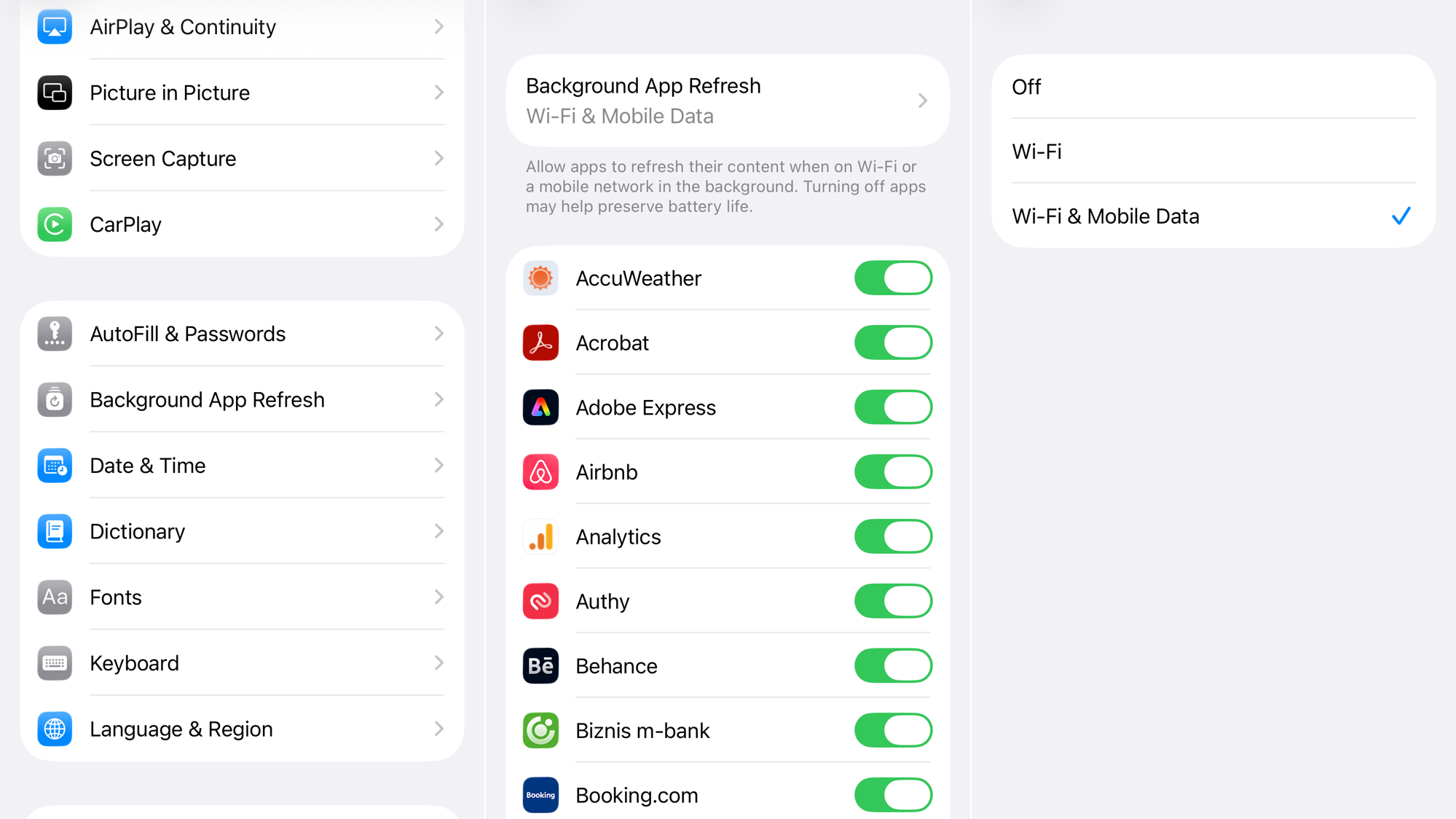
- Ensure the toggle is on for Shazam.
6. Reset Network Settings
If the service is running but fails to identify songs, a network issue could be the cause. This reset will clear saved Wi‑Fi passwords and other network configurations.
- Go to Settings > General > Transfer or Reset iPhone.
- Tap Reset > Reset Network Settings.

You may also want to fix cellular data issues if you rely on a cellular connection for music identification.
7. Check for an iOS Update
The issue could be a bug in the initial iOS 26 release. Apple often releases small follow‑up updates to fix such problems.
- Go to Settings > General > Software Update.

- If a new version (e.g., iOS 26.0.1) is available, download and install it.
If none of these solutions work, contact Apple Support.



