
How to Customize App Icons in iOS 26 (Light/Dark/Clear/Tinted options)

With iOS 26, Apple introduces a brand new way to personalize your Home Screen without needing third‑party apps or complicated workarounds. You can now…
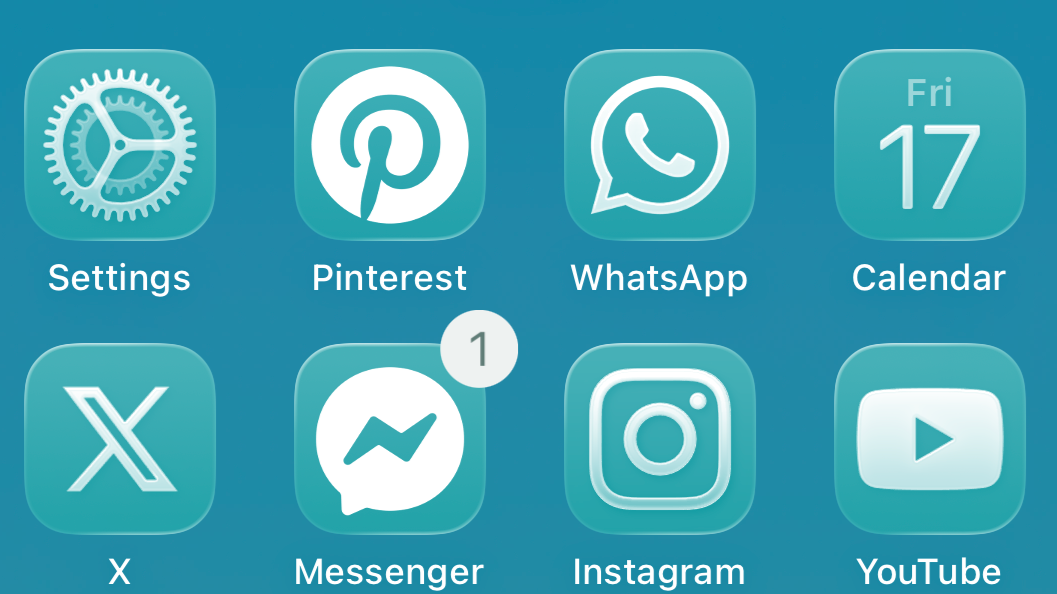
With iOS 26, Apple introduces a brand new way to personalize your Home Screen without needing third‑party apps or complicated workarounds. You can now instantly change the look of all your app icons with new styles like Light, Dark, Clear, and Tinted. This lets you create a more cohesive theme that matches your wallpaper and system appearance.
Learning how to customize app icons in iOS 26 is simple and allows you to give your iPhone a fresh, modern feel.
How to Change Your App Icons on the Home Screen
All the new customization options are located in a single menu accessible directly from your Home Screen. The changes you make will apply to all your app icons and widgets at once.
- Press and hold on an empty area of your Home Screen until your apps start to jiggle.
- Tap Edit in the top‑left corner of the screen.
- From the menu that appears, tap Customize. This will open the new Home Screen appearance panel.
- You will see several options: Default, Dark, Clear, and Tinted. Tap one to see a live preview of how it looks.
- After selecting your preferred style, simply tap anywhere on the wallpaper to close the panel and save your changes.
Understanding the New App Icon Styles
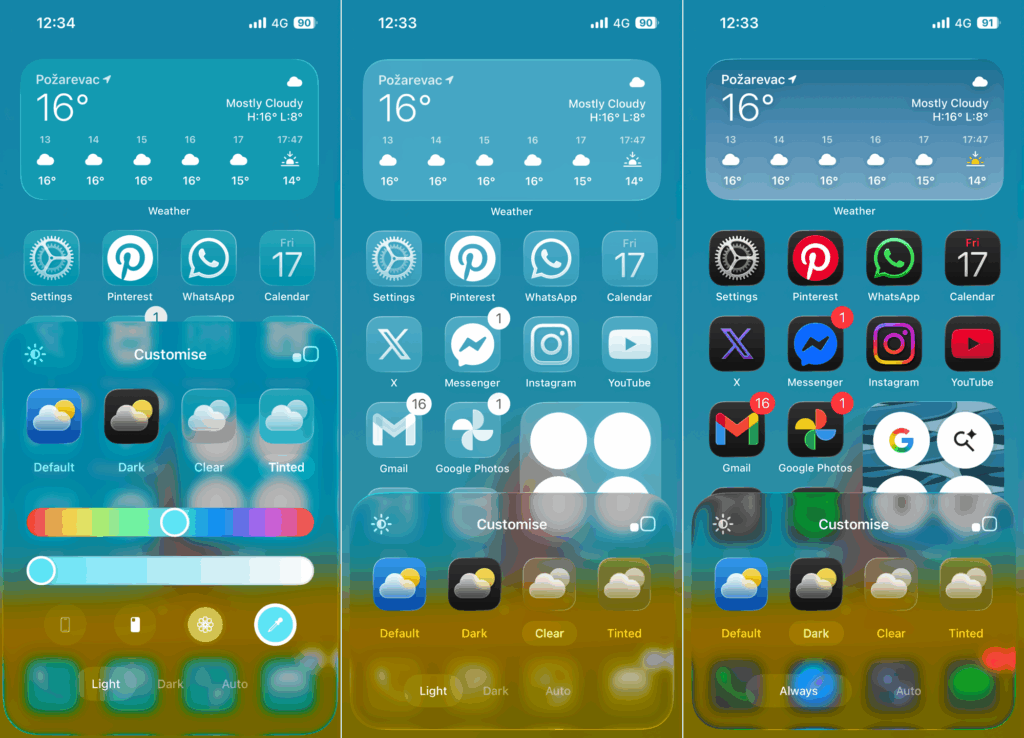
Each of the new icon styles offers a unique look for your Home Screen. Here is a breakdown of what each one does.
- Default: This is the standard, full‑color icon style you are used to.
- Dark: This option applies a darker theme to your app icons, making them less bright. It’s a great choice if you frequently use Dark Mode.
- Clear: This style gives your icons a translucent, glass‑like effect that allows your wallpaper to show through. When you select Clear, you can further choose between Light, Dark, or Auto. The Auto setting will automatically switch between the Light and Dark clear effects based on your system’s appearance.
- Tinted: This applies a single color overlay to all your app icons. You can use the color slider to pick any tint you want or tap the iPhone icon to automatically match the color of your iPhone’s body or MagSafe case. This style also includes Light, Dark, and Auto modes.
Additional Customization Tips
The new customization panel includes a few other tools to help you perfect your Home Screen layout.
Adjust Wallpaper Contrast
If your new Clear or Tinted icons are hard to read against your wallpaper, tap the sun icon in the customization panel. This allows you to dim the wallpaper, which increases the contrast and makes app labels and icons stand out more clearly. Enabling the adaptive power feature can help offset any extra battery use from the new visual effects.
Change Icon Size
You can also change the size of your app icons. In the customization panel, tap the icon size button (it shows four small squares). This toggles between two options:
- Small Icons: The default size, which includes app name labels below each icon.
- Large Icons: A bigger icon size that removes the app name labels for a cleaner, more minimalist look.
If you notice any slowdown after changing icon sizes, refer to the guide on how to fix home screen lag.
For a dynamic lock screen that complements your new icons, you can also enable Spatial Scenes.


