
How to Fix Missing Voicemails on iOS 26

You updated your iPhone to iOS 26 hoping for new features, but instead you lost your entire voicemail history. This is a widespread…

You updated your iPhone to iOS 26 hoping for new features, but instead you lost your entire voicemail history. This is a widespread issue affecting users on major carriers like AT&T, Verizon, and T-Mobile. Apple redesigned the Phone app layout with a new Unified view, and this change has caused significant sync glitches that make the Voicemail tab disappear or fail to load entirely.
The good news is that your messages are almost certainly not deleted. They are still sitting safely on your carrier’s servers, but your iPhone is failing to fetch or display them properly. The interface update broke the visual link between your device and the data. We have compiled the fixes that are actually working for users to restore that connection.
Why Did My Voicemails Disappear?
The primary culprit here is the new interface introduced in iOS 26. Apple decided to streamline the Phone app by merging tabs into a “Unified” view, often removing the dedicated Voicemail tab entirely. This change forces the app to reorganize how it presents data, and during the migration from the old layout to the new one, the visual link to your existing messages frequently breaks. It is a classic case of a UI overhaul disrupting backend data presentation.
Beyond the cosmetic changes, the update process often interrupts the handshake between your iPhone and your carrier’s voicemail server. Your phone acts as a visual client for data stored on servers like those of AT&T or Verizon. When you update the OS, the device attempts to re-register this client. If that handshake fails or times out, the phone assumes there is no data to display, resulting in an empty list or an “unavailable” error even though the files are physically safe on the remote server.
This is essentially a caching error rather than a deletion event. We see this confirmed by users on Apple Support Communities who can still access their messages by dialing their own number or finding them in the “Deleted Messages” folder after a force restart. The system has simply lost track of where to put them in the new Unified layout.
How to Restore Missing Voicemails
Since this is primarily a UI and sync failure, you do not need to panic about permanent data loss just yet. We will start with the interface toggles that usually resolve the hidden tab issue before moving to network resets.
1. Toggle the Phone App Layout
This is the most common fix for the missing tab or empty list. The new interface hides the traditional view, so you need to manually bring it back to force the app to recognize your voicemails.
- Open the Phone app.
- Tap the three horizontal lines or the filter icon in the top-right corner of the Recents or main screen.
- Switch the view from Unified to Classic. If it is already on Classic, switch it back and forth.
- Select Voicemail from the dropdown menu if it appears.
2. Force a Carrier Re-sync with Airplane Mode
If the tab is there but empty, your visual voicemail needs to re-download the data headers from the carrier. A simple network cycle can trigger this.
- Open the Control Center and turn on Airplane Mode.
- Wait for about 30 seconds to ensure all radios are off.
- Turn Airplane Mode off and wait for your signal bars to return to solid strength.
- Open the Phone app and check the Voicemail section again.
3. Update to the Latest iOS Point Release
Apple is aware of these visual bugs and often patches them quietly in minor updates. Users have reported that jumping to iOS 26.1 or 26.2 immediately restored their missing messages.
- Go to Settings and tap General.
- Select Software Update.

- If an update like 26.2.1 is available, install it immediately as it likely contains the fix for these specific visual glitches.
4. Check the Deleted Messages Folder
Sometimes the update process glitches and moves valid messages to the trash. It is worth checking this folder just in case the system mislabeled your data.
- Force quit the Phone app by swiping up from the bottom and pausing, then swiping the app away.
- Reopen the Phone app and go to the Voicemail section.
- Scroll to the bottom and look for Deleted Messages.
- If you find your missing items there, tap Undelete to restore them.
5. Reset Network Settings
If the visual voicemail is still unavailable, you likely have a corrupted carrier provisioning profile. This step will clear out those glitches without erasing your personal data, though you will lose saved Wi-Fi passwords.
- Go to Settings and select General.
- Tap Transfer or Reset iPhone, then Reset.
- Choose Reset Network Settings and confirm.
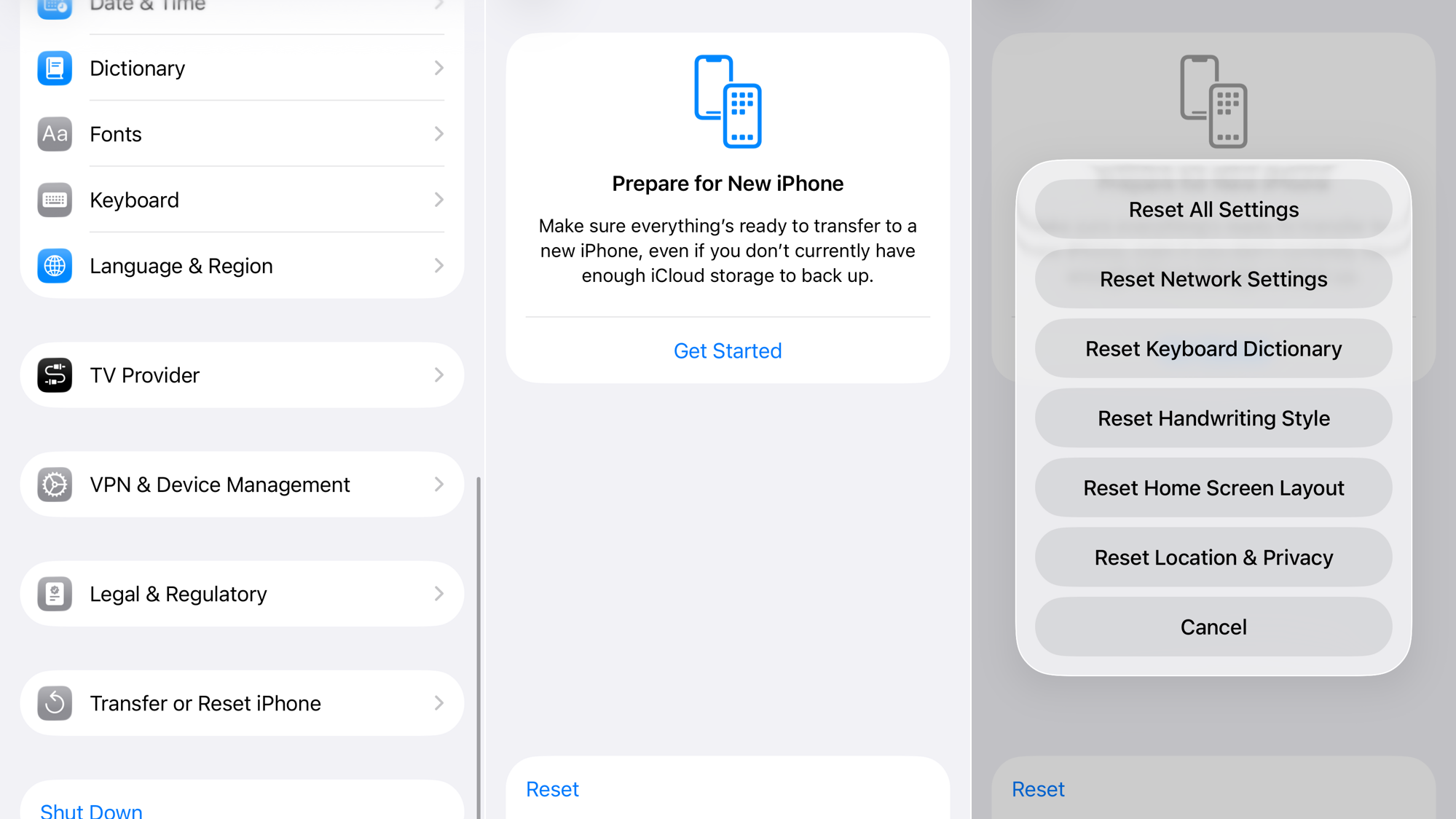
- Once the phone restarts, check your voicemail again. If visual voicemail still fails, try calling your own phone number to access the messages via the traditional audio menu.
In the vast majority of cases, this is a temporary display failure and not a permanent loss of data. Your voicemails are almost certainly still on the carrier servers, waiting for the phone to properly request them again. If you have tried all these steps and still see an empty list, leave a comment with your specific carrier and iOS version so others can compare notes on this glitch.



