
Fix: Wi-Fi and Internet Not Working on iPhone iOS 26

One of the most frustrating issues you can face is when your iPhone’s Wi‑Fi stops working, especially right after a major software update….

One of the most frustrating issues you can face is when your iPhone’s Wi‑Fi stops working, especially right after a major software update. Many users who have updated to iOS 26 report that their device can connect to a Wi‑Fi network but has no internet access, or it struggles to connect at all. As described in this Apple Community discussion, this problem often begins immediately after installing the new OS, indicating it’s a software‑related bug rather than a problem with your router. The issue is typically caused by corrupted network settings carried over during the update or a specific bug in the initial release of iOS 26.
Why Wi‑Fi Stops Working After an iOS Update
Your iPhone’s ability to connect to the internet is managed by low‑level software that controls its Wi‑Fi and cellular radios. A major OS update replaces this software, and in the process, it must also migrate your existing network settings, such as saved Wi‑Fi passwords and custom configurations.
Sometimes, this migration process can corrupt these settings, leaving your iPhone unable to properly communicate with your router. Additionally, new software versions can contain bugs that affect how the Wi‑Fi hardware functions, leading to widespread connectivity problems that Apple typically addresses in a subsequent patch release.
How to Fix Wi‑Fi and Internet Not Working
Before trying these steps, quickly check that other devices can connect to your Wi‑Fi network to confirm the issue is with your iPhone and not your internet service.
1. Restart Your iPhone and Wi‑Fi Router
This is the simplest and often most effective first step. Restarting your devices clears out temporary memory and forces them to establish a fresh connection from scratch.
- Restart your iPhone: Press and quickly release the volume up button, press and quickly release the volume down button, then press and hold the side button until the Apple logo appears.
- Restart your router: Unplug your Wi‑Fi router from its power source. Wait 30 seconds, then plug it back in. Wait a few minutes for it to fully boot up before trying to connect again.
2. Reset Network Settings
This is a powerful solution that erases all your iPhone’s current network configurations and restores them to factory defaults. It is highly effective for fixing issues caused by corrupted settings from an iOS update. Note that this will remove all saved Wi‑Fi passwords.
- Go to Settings > General > Transfer or Reset iPhone.
- Tap Reset > Reset Network Settings.

- Enter your passcode to confirm. Your iPhone will restart.
- Once it’s back on, reconnect to your Wi‑Fi network.
If the problem persists after a network reset, you may also be dealing with broader cellular connectivity issues. Learn how to fix cellular data issues.
3. Update to the Latest Version of iOS
If the Wi‑Fi issue is a known bug in the initial iOS 26.0 release, Apple will issue a fix in a follow‑up software update (e.g., iOS 26.0.1). This is the most likely permanent solution.
- Go to Settings > General > Software Update.

- If an update is available, tap Download and Install. You may need to use cellular data or connect to a computer to download the update if your Wi‑Fi is completely non‑functional.
4. Forget and Reconnect to the Wi‑Fi Network
This forces your iPhone to delete the specific profile for your home network, including any potentially corrupted data, and start over.
- Go to Settings > Wi‑Fi.

- Tap the info icon (i) next to the network you’re having trouble with.
- Tap Forget This Network and confirm.
- Return to the Wi‑Fi list, select the network again, and re‑enter the password.
5. Disable VPN
If you use a VPN, it can sometimes interfere with your internet connection, especially after an OS update changes network protocols.
- Go to Settings > General > VPN & Device Management.
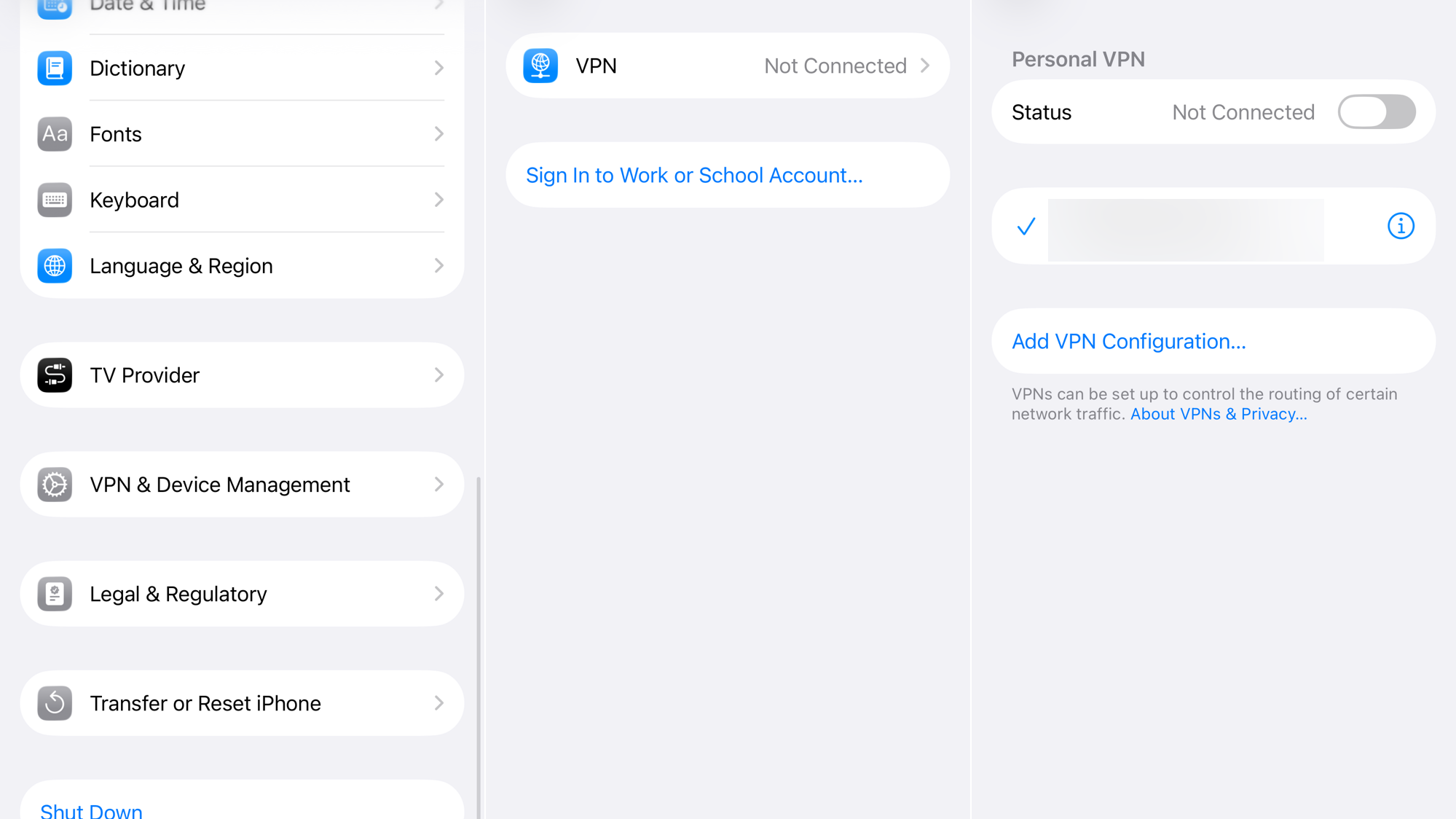
- Tap VPN.
- If the status is “Connected,” tap the toggle to turn it off. Also, ensure that any “Connect On Demand” features within your VPN app are disabled temporarily.
6. Disable Private Wi‑Fi Address
This feature helps protect your privacy by randomizing your device’s MAC address. However, some older routers or complex network configurations can have trouble with it.
- Go to Settings > Wi‑Fi.
- Tap the info icon (i) next to your network.
- Toggle Private Wi‑Fi Address off.
- A prompt will appear; tap Rejoin to reconnect to the network.
7. Change DNS Settings
If you can connect to Wi‑Fi but can’t access any websites, the issue might be with the DNS server. Switching to a reliable public DNS can often fix this.
- Go to Settings > Wi‑Fi and tap the info icon (i) next to your network.
- Scroll down and tap Configure DNS.
- Select Manual, then tap Add Server.
- Enter a public DNS server like
8.8.8.8(Google) or1.1.1.1(Cloudflare) and tap Save.
If your iPhone is running hot, the Wi‑Fi radio may throttle, leading to connectivity drops. See how to fix iPhone overheating for additional troubleshooting.
If none of these solutions work, contact Apple Support.



