
Fix: Cellular Data Not Working After iOS 26 Update

After updating to iOS 26, some users are finding that their cellular data has completely stopped working, leaving them without internet access when away…

After updating to iOS 26, some users are finding that their cellular data has completely stopped working, leaving them without internet access when away from Wi‑Fi. This can be an incredibly disruptive issue, especially when, as one user in an Apple Community discussion described, you’ve already tried all the common troubleshooting steps without success.
The problem typically stems from a glitch during the update process that corrupts network settings, an incompatibility with existing carrier settings, or a bug in the new software itself.
Your iPhone’s ability to connect to a cellular network depends on a precise partnership between three components: the iOS software, your carrier’s specific settings, and the iPhone’s physical modem hardware. A major software update like iOS 26 can alter the instructions that manage this connection.
Why Cellular Data Fails After an Update
Your iPhone’s ability to connect to a cellular network depends on a precise partnership between three components: the iOS software, your carrier’s specific settings, and the iPhone’s physical modem hardware. A major software update like iOS 26 can alter the instructions that manage this connection.
Sometimes, the update process can scramble the saved network configurations or the APN (Access Point Name) settings, which are the addresses your phone uses to connect to your carrier’s internet gateway. In other cases, the new iOS version requires an updated carrier settings file to function correctly, and if that update hasn’t been applied, the connection will fail.
How to Fix Cellular Data on iOS 26
Work through these solutions in order, starting with the simplest fixes. These steps are designed to reset the connection between your iPhone and your carrier’s network.
1. Toggle Airplane Mode
This is the quickest way to force your iPhone to disconnect and then re‑establish a fresh connection to the nearest cell tower.
Swipe down from the top‑right corner of the screen to open Control Center.
Tap the Airplane Mode icon to turn it on (it will turn orange).
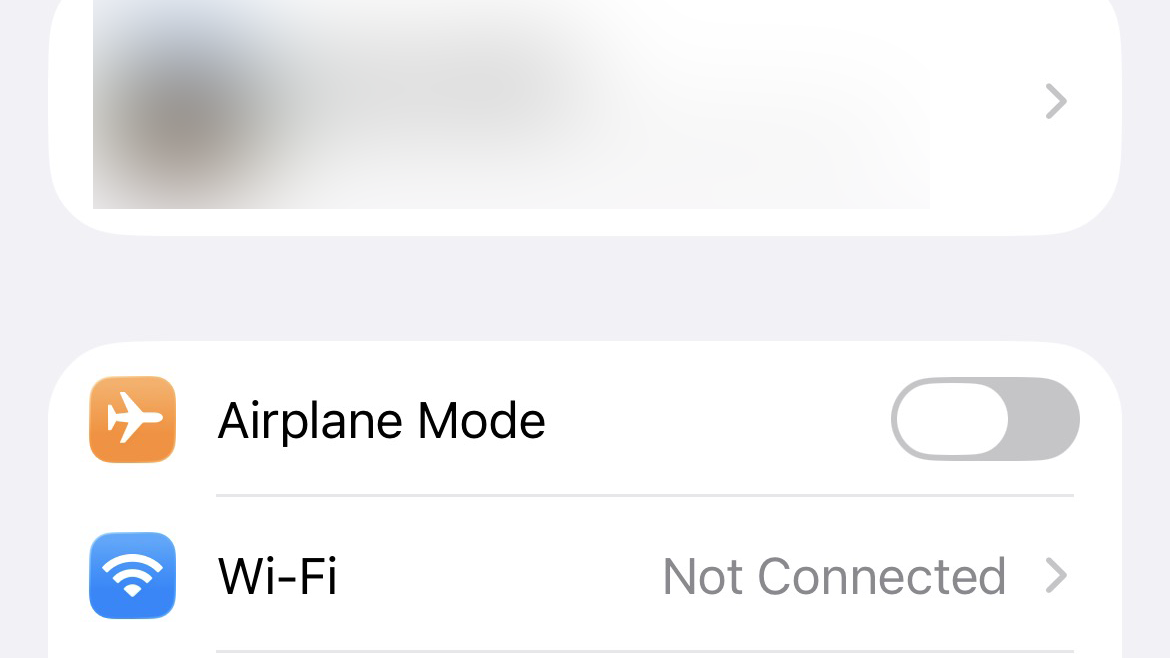
Wait for 30 seconds.
Tap the Airplane Mode icon again to turn it off.
2. Restart Your iPhone
A simple restart can clear temporary software glitches that may have occurred during or after the iOS update.
- Press and hold the Side button and either volume button until the power‑off slider appears.
- Drag the slider to turn off your iPhone.
- After 30 seconds, press and hold the Side button again until the Apple logo appears.
3. Check for a Carrier Settings Update
Your carrier may have released a specific update to ensure its network works correctly with iOS 26. Your iPhone usually prompts you for this, but you can also check manually.
- Make sure your device is connected to Wi‑Fi.
- Go to Settings > General > About.
- If an update is available, a pop‑up will appear after a few seconds. Tap Update. If nothing appears, your carrier settings are up to date.
4. Remove and Reinsert Your SIM Card
Reseating your physical SIM card can resolve issues with its connection to your iPhone. If you use an eSIM, you can achieve a similar result by toggling it off and on.
- For physical SIMs: Use a SIM ejector tool to open the SIM tray, remove the card, wait a moment, and reinsert it.
- For eSIMs: Go to Settings > Cellular, tap your eSIM line, and toggle Turn On This Line off and then on again.
5. Reset Network Settings
This is a highly effective solution that erases all current network configurations, including cellular data, Wi‑Fi passwords, and VPN settings, forcing your iPhone to start fresh.
Go to Settings > General > Transfer or Reset iPhone.
Tap Reset > Reset Network Settings.

Enter your passcode to confirm. Your iPhone will restart.
You will need to re‑enter your Wi‑Fi passwords after the reset is complete.
6. Switch from 5G to LTE
A bug in iOS 26 might be specifically affecting 5G connectivity. Switching to LTE (4G) can provide a more stable connection until a fix is released.
- Go to Settings > Cellular > Cellular Data Options.
- Tap Voice & Data.
- Select LTE instead of 5G Auto or 5G On.
If the LTE option isn’t available, you may need to restore 3G/4G options.
For eSIM users, a corrupted profile can cause similar problems; see how to fix eSIM data issues for detailed steps.
7. Disable Any Active VPN
A VPN can sometimes interfere with cellular data, especially if the VPN app is not yet fully compatible with iOS 26.
- Go to Settings > General > VPN & Device Management.
- Tap VPN.
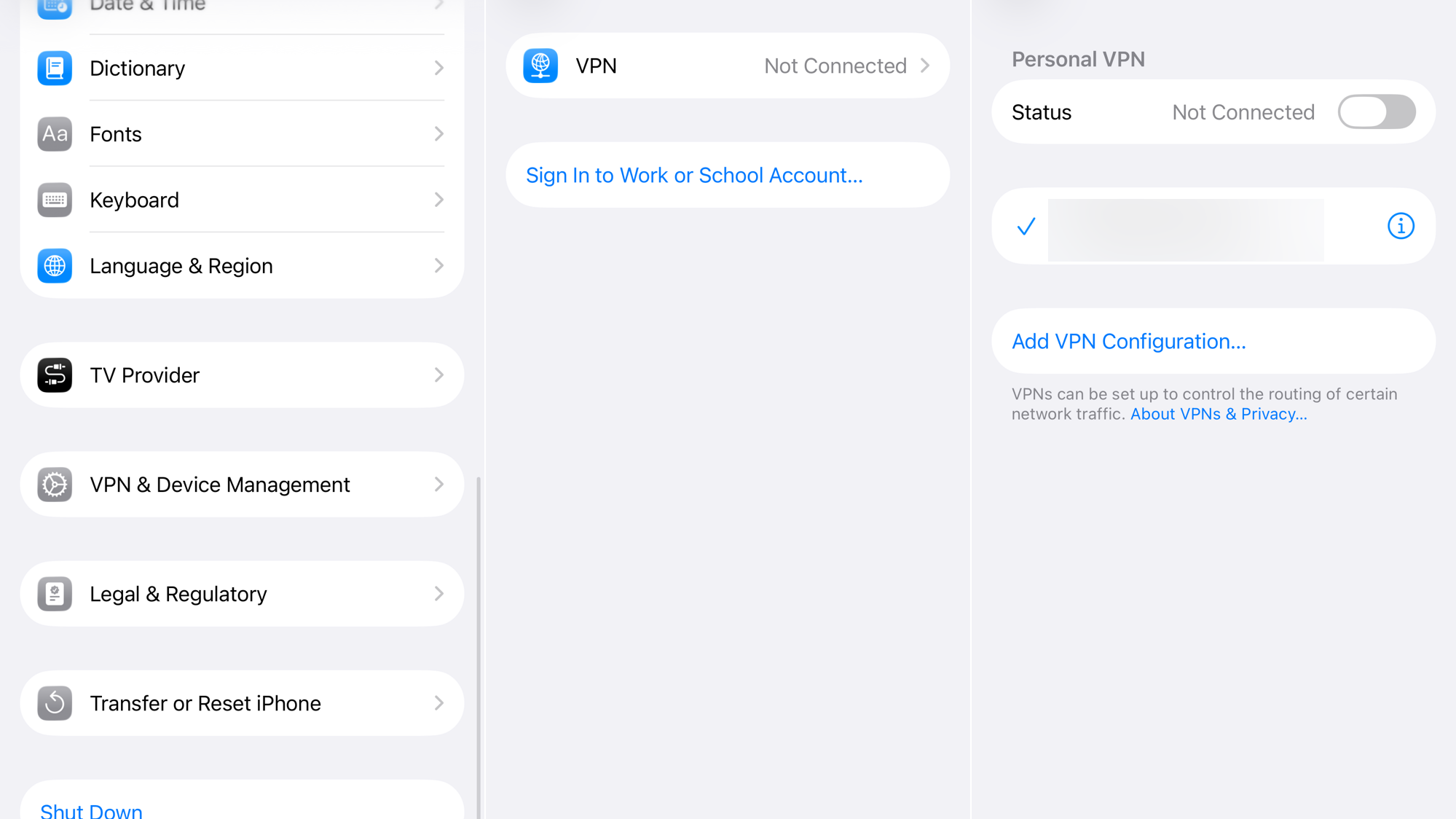
- If any VPN is connected, toggle its Status to Not Connected. You may also want to delete the VPN profile and test your cellular data again.
8. Check for an iOS Update
Apple is often quick to release follow‑up updates (like iOS 26.0.1) to fix major bugs discovered after a new release.
- Go to Settings > General > Software Update.

- If a new update is available, tap Download and Install.
If none of these solutions work, contact your cellular carrier to ensure there are no outages or account‑related issues, and then contact Apple Support for further assistance.
Tip: Enabling the adaptive power feature can also help conserve battery while you troubleshoot connectivity problems.



