
Fix: iPhone Home Screen Lag on iOS 26

After updating to iOS 26, you might notice a frustrating and unexpected slowdown in a place you interact with most: the Home Screen. Swiping between pages, opening app folders, and even the animation after unlocking your device can feel sluggish, with a noticeable delay before you can tap on an app. As some users have pointed out in this Apple Community discussion, this lag can make a brand‑new iPhone feel significantly slower than an older model running a previous version of iOS. This performance issue is almost always caused by temporary post‑update processes or a software bug, not a hardware problem.
Why Your Home Screen is Lagging
The most common cause of sluggishness after a major iOS update is background indexing. Your iPhone needs to re‑organize all its data—photos, files, app data, and emails—so that features like Spotlight search can work correctly. This is a CPU‑intensive process that can run for a day or two, consuming system resources and making the user interface feel slow.
Additionally, the Home Screen itself, managed by a system process called SpringBoard, can be affected by bugs or unoptimized code in the initial release of a new iOS version. Finally, resource‑heavy features like numerous widgets and background app activity can compete for processing power, leading to stuttering animations and delayed responses on the Home Screen.
How to Fix a Slow and Laggy Home Screen
These solutions are ordered from the simplest and most likely to the more involved. Give your iPhone some time after the update before proceeding to more complex steps.
1. Wait for Background Indexing to Finish
Before trying anything else, simply wait. The lag is often a temporary side effect of your iPhone working hard in the background to finish its post‑update tasks.
Plug your iPhone in to charge and connect it to Wi‑Fi overnight. If you encounter connectivity hiccups, see how to fix Wi‑Fi issues so the indexing can proceed smoothly. This allows the indexing processes to run most efficiently. For many users, the sluggishness will resolve itself within 24‑48 hours.
2. Force Restart Your iPhone
A force restart is more powerful than a standard reboot and can clear out temporary cache files and stop runaway processes that might be causing the lag.
- Press and quickly release the volume up button.
- Press and quickly release the volume down button.
- Press and hold the side button until the Apple logo appears, then release.
3. Free Up Storage Space
iOS needs a healthy amount of free storage (at least 10 % of your total capacity) to run smoothly. When storage is nearly full, the system can slow down dramatically.
- Go to Settings > General > iPhone Storage.

- Review the recommendations and delete or offload large, unused apps and files.
4. Reduce Home Screen Widgets
While useful, widgets constantly run in the background to fetch and display information, which consumes resources. Temporarily removing them can help diagnose if they are the cause of the lag.
- Press and hold any widget on your Home Screen.
- Tap Edit Home Screen.
- Tap the minus (‑) icon on any non‑essential widgets to remove them.
5. Adjust Motion and Transparency Settings
These settings control the visual effects of the user interface. Reducing them can ease the load on your iPhone’s graphics processor. While some users report this only hides the lag without fixing the underlying delay, for many it improves responsiveness.
- Go to Settings > Accessibility > Motion.
- Turn on the toggle for Reduce Motion.
- Next, go to Settings > Accessibility > Display & Text Size.
- Turn on the toggle for Reduce Transparency.
6. Disable Background App Refresh
This feature allows apps to update in the background, but it can contribute to a sluggish system.
- Go to Settings > General > Background App Refresh.
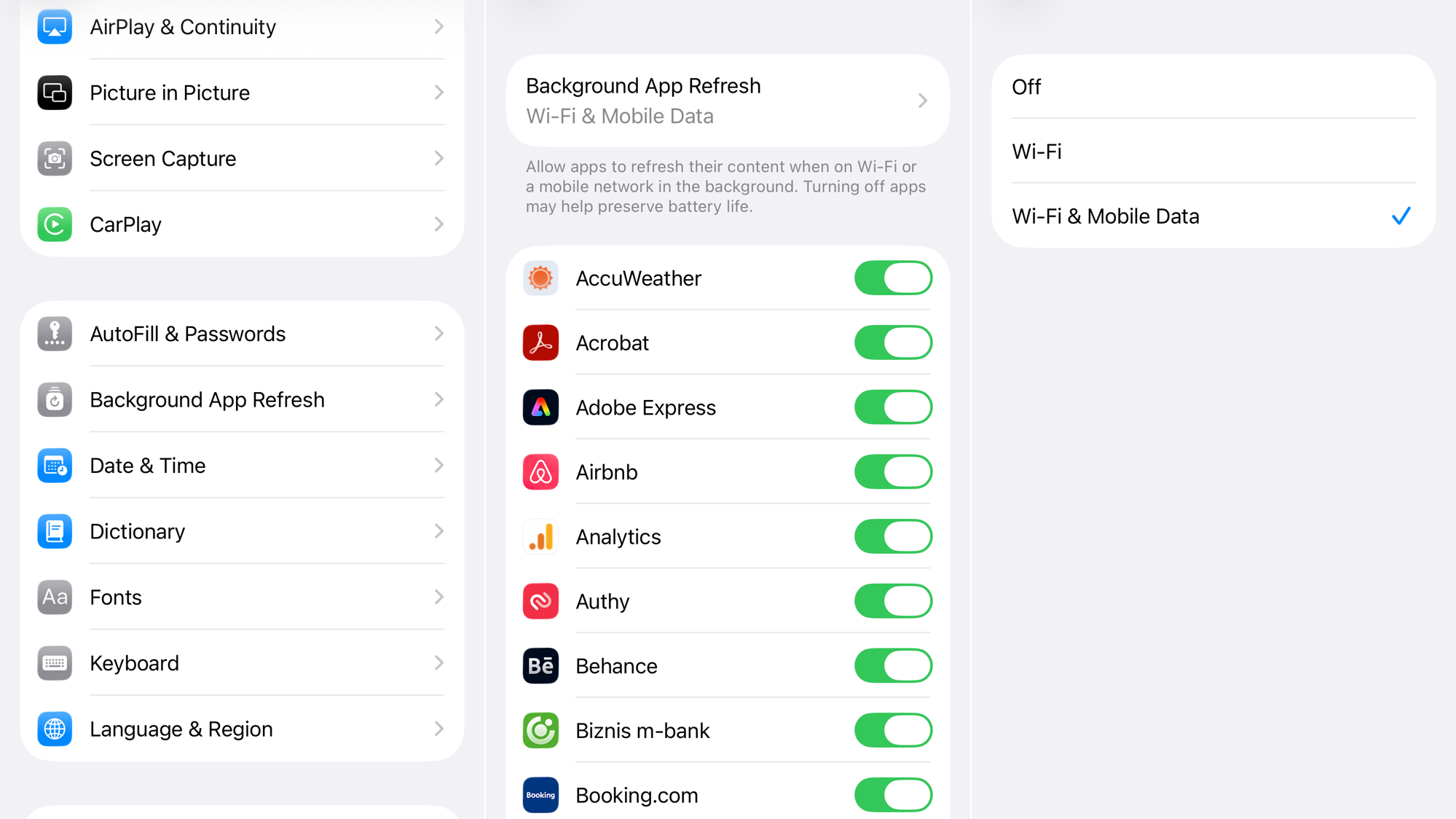
- You can either turn the feature off completely at the top or disable it for individual apps you don’t need updating constantly.
7. Check for an iOS Update
If the lag is a widespread bug, Apple will likely release a follow‑up patch (e.g., iOS 26.0.1) to address performance issues.
- Go to Settings > General > Software Update.

- If an update is available, tap Download and Install.
8. Optimize Battery Management
When the device is overheating or the battery is under strain, performance can degrade. Enabling Apple’s adaptive power feature can help the system balance performance and battery life more efficiently. Learn how to adaptive power feature for better battery optimization.
9. Address Overheating
If your iPhone feels unusually hot, thermal throttling may be limiting CPU speed, which contributes to Home Screen lag. Follow the steps to fix iPhone overheating to reduce temperature and restore normal performance.
If none of these solutions work, contact Apple Support.



