
Fix: Cannot Change Screen Time Passcode in iOS 26

After updating to iOS 26, you might find your iPhone has suddenly enabled strict age restrictions that you can’t seem to change. This issue…

After updating to iOS 26, you might find your iPhone has suddenly enabled strict age restrictions that you can’t seem to change. This issue can be incredibly frustrating, preventing you from downloading apps rated for older users, signing out of your Apple ID, or even accessing the option to change your Screen Time passcode, as one user described in this Apple Community discussion. This situation isn’t a bug that forces new restrictions on you; rather, it’s almost always caused by a pre‑existing Screen Time passcode that you may have forgotten, or because your device is being managed through an Apple Family Sharing group.
Why You Can’t Change Screen Time Settings
Screen Time is an iOS feature that allows you to monitor and limit device usage. It is protected by its own four‑digit passcode, which is completely separate from the passcode you use to unlock your iPhone. When you’re locked out of changing these settings, it’s for one of two primary reasons.
First, if your Apple ID is part of a Family Sharing group and you are listed as a child or teen, a parent or designated “Organizer” controls your Screen Time settings remotely. You cannot change or remove the passcode from your own device. If you’re also having trouble with shared Reminders, see how to fix Reminders sharing. Second, you may have set a Screen Time passcode on your own device in the past—perhaps years ago when the feature was called “Restrictions”—and have since forgotten it. The iOS 26 update may have re‑enforced these old settings, leaving you locked out.
How to Fix Age Restrictions and Change the Screen Time Passcode
Start with the most likely solutions first, such as checking your Family Sharing status, before moving on to more drastic steps like resetting your device.
1. Check if Your Device is Managed by Family Sharing
This is the most common reason for being unable to change Screen Time settings. If you are part of a family group, only the organizer can adjust these restrictions.
- Go to Settings and tap on your name at the top.
- Look for a Family Sharing section. If you are a member, it will list the organizer.
- You must contact the Family Organizer and ask them to change or remove the Screen Time settings for your account from their own device.
2. Reset a Forgotten Screen Time Passcode
If your device is not managed by a family member, you should be able to reset the passcode using your Apple ID. This is the intended recovery method.
- Go to Settings > Screen Time.
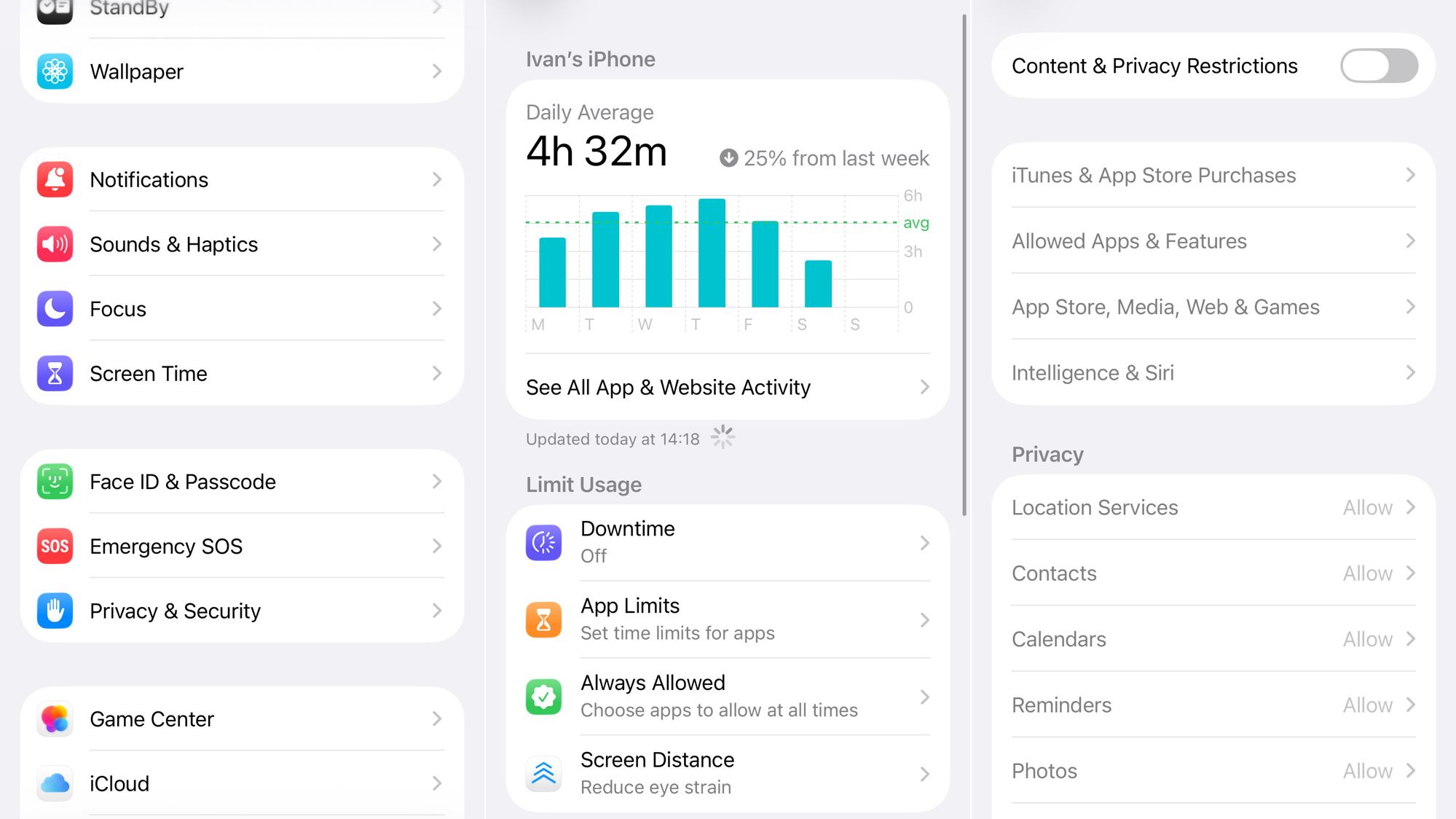
- Scroll down and tap Change Screen Time Passcode, then tap it again.
- On the passcode entry screen, tap Forgot Passcode?.
- Enter the Apple ID and password that were used to originally set up the Screen Time passcode.
- Follow the prompts to set a new passcode.
3. Update Your iPhone
If the “Forgot Passcode?” option is missing, it could be a temporary bug in your current version of iOS. Updating to the latest patch may restore this functionality.
- Go to Settings > General > Software Update.

- If an update is available (e.g., iOS 26.0.1), tap Download and Install.
- Ensure your Wi‑Fi connection is solid; you can fix Wi‑Fi issues if the network seems unstable.
4. Restart Your iPhone
A simple restart can clear minor software glitches that might be affecting the Settings app or the Screen Time feature.
- Press and hold either volume button and the side button until the power‑off slider appears.
- Drag the slider to turn your iPhone off.
- After 30 seconds, press and hold the side button until the Apple logo appears.
- If the problem persists, consider checking your cellular connection; you can fix cellular data issues as a next step.
5. Erase Your iPhone (Last Resort)
If you cannot recover the passcode and are not in a Family Sharing group, the only official Apple‑supported method to remove a forgotten Screen Time passcode is to erase your iPhone and set it up as new. Restoring from a backup will also restore the Screen Time passcode.
- First, back up your device to iCloud or a computer so you don’t lose your personal data like photos and contacts.
- Go to Settings > General > Transfer or Reset iPhone.
- Tap Erase All Content and Settings.

- After the device is erased, proceed with the on‑screen setup. Do not restore from a backup. Instead, choose to set it up as a new iPhone. You can sign back into your Apple ID to sync data like contacts, calendars, and photos from iCloud.
- For overall system stability, you may also want to enable the adaptive power feature to help manage battery usage after a full reset.
If none of these solutions work, contact Apple Support.



