
Fix: Face ID Not Working After iOS 26 Update

When Face ID suddenly stops working after an iOS 26 update, it can be a major inconvenience, locking you out of your phone, apps,…

When Face ID suddenly stops working after an iOS 26 update, it can be a major inconvenience, locking you out of your phone, apps, and payment methods. Users often report that Face ID either fails to recognize them or becomes completely unavailable, sometimes presenting an error like “Your face is out of view” during setup, even when positioned correctly.
As detailed in this Apple Community discussion, this issue can be incredibly frustrating, especially when you were hoping the latest software update would fix existing problems, not create new ones. The good news is that this is almost always a software glitch, not a hardware failure.
Why Face ID Fails After an iOS Update
Face ID relies on a sophisticated array of sensors called the TrueDepth camera system, which projects and analyzes thousands of invisible dots to create a precise depth map of your face. This facial data is encrypted and stored securely within your iPhone. During a major software update like iOS 26, the process of migrating this data can sometimes lead to corruption. This type of corruption often requires a direct fix Face ID issues.
When this happens, the software that interprets the TrueDepth camera’s input can no longer match what it sees with the stored data, causing recognition to fail. The update can also alter system settings or introduce bugs that interfere with the camera’s operation, leading to errors that prevent you from even resetting Face ID.
How to Fix Face ID Not Working
Before you begin, ensure nothing is covering the TrueDepth camera system, which is located in the notch or Dynamic Island at the top of your screen. Remove any screen protectors or cases that might be obstructing it and wipe the area with a soft, dry cloth.
1. Restart Your iPhone
A simple restart can resolve temporary software conflicts that may be interfering with the Face ID system. It forces all background processes to close and restart, which can often clear the error.
- Press and hold the side button and either volume button until the power‑off slider appears.
- Drag the slider to turn your iPhone off.
- Wait 30 seconds, then press and hold the side button until the Apple logo appears.
2. Check Your Face ID Settings
It’s possible that the iOS update disabled some settings for Face ID. Ensuring they are enabled is a crucial first step.
- Go to Settings > Face ID & Passcode.
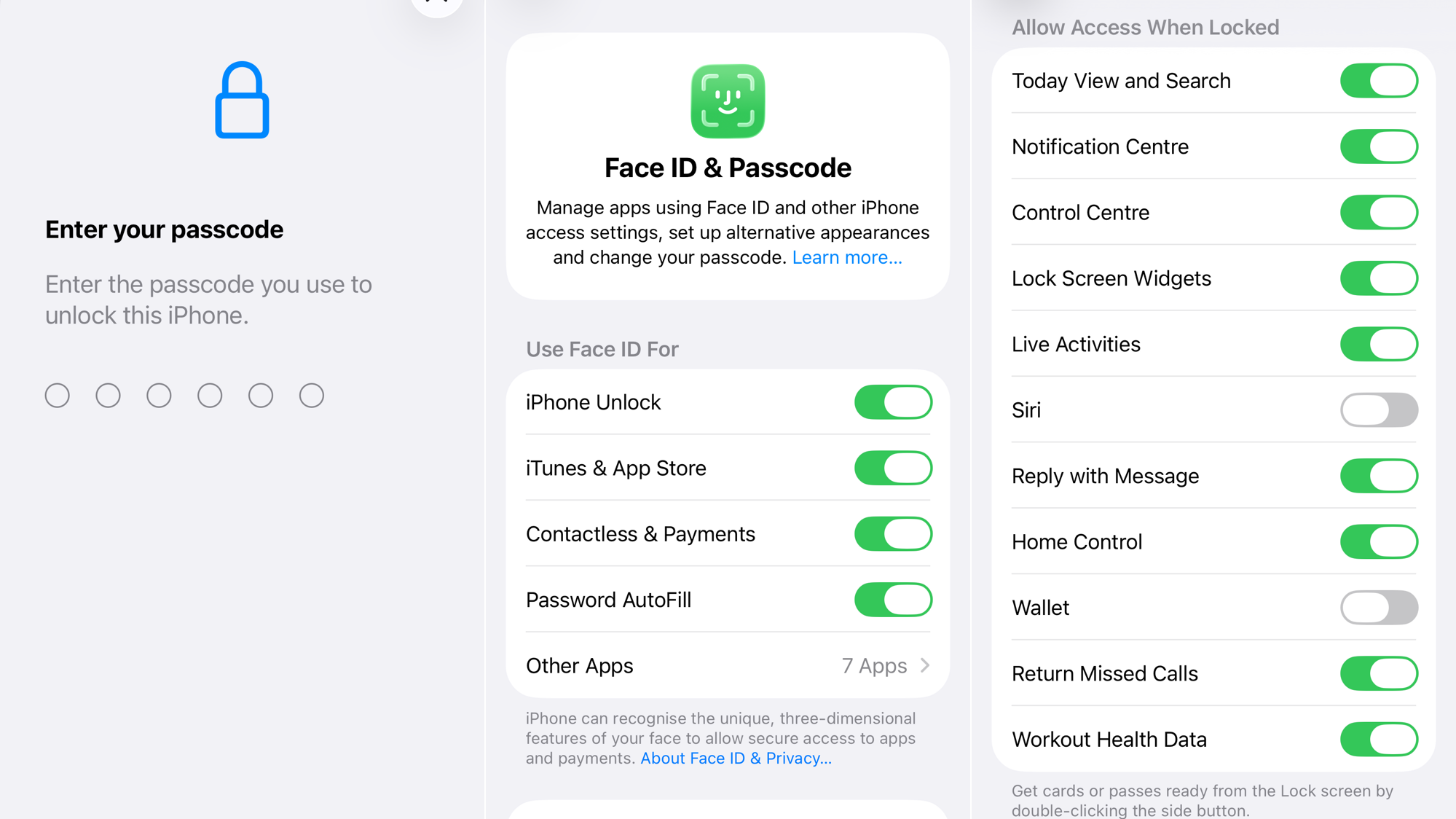
- Enter your passcode.
- Make sure that the toggles for iPhone Unlock, iTunes & App Store, and Wallet & Apple Pay are turned on (green).
- As a test, try turning off Require Attention for Face ID. This feature adds security but can sometimes cause recognition issues, especially if you’re wearing certain sunglasses.
3. Check for an iOS Update
If the problem is a widespread bug in the initial iOS 26 release, Apple will likely issue a follow‑up patch (e.g., iOS 26.0.1) to fix it.
- Go to Settings > General > Software Update.

- If an update is available, tap Download and Install.
4. Reset Face ID
This is the most effective solution for a corrupted facial map. It completely deletes your old Face ID data, allowing you to perform a fresh scan and create a new, uncorrupted profile.
- Go to Settings > Face ID & Passcode.
- Tap Reset Face ID.
- Once reset, tap Set Up Face ID and follow the on‑screen instructions to scan your face again.
5. Reset All Settings
This is a more comprehensive step that can resolve deeper software conflicts without erasing your personal data like photos or apps. It will, however, reset all your system settings to their defaults, including Wi‑Fi passwords, notification settings, and display brightness.
- Go to Settings > General > Transfer or Reset iPhone.
- Tap Reset > Reset All Settings.

- Enter your passcode to confirm. Your iPhone will restart.
If your device is running hot, you might notice additional performance problems; applying the adaptive power feature can help. Excess heat can also affect the TrueDepth sensors, so consider the fix iPhone overheating guide.
If none of these solutions work, contact Apple Support.



