
Fix: 3G and 4G Options Missing on iPhone iOS 26

After updating to iOS 26, some users have discovered that the manual selection options for 3G and 4G/LTE have disappeared from their Cellular settings….

After updating to iOS 26, some users have discovered that the manual selection options for 3G and 4G/LTE have disappeared from their Cellular settings. This change can cause significant connectivity problems, especially for those who rely on manually switching to older networks for stable service in areas with poor 5G or 4G coverage. As one user highlighted in an Apple Community discussion, this prevents them from selecting a reliable 3G signal when their local 4G is unstable. The issue may be caused by a bug in iOS 26, an intentional change by Apple, or a new carrier settings update that removes these legacy options.
Why the 3G/4G Options Disappear
The network options available on your iPhone, found under Voice & Data, are controlled by two key factors: the iOS software and a configuration file from your cellular carrier, known as a carrier settings bundle. These bundles tell your iPhone how to connect to the network, what features are available, and which network types (5G, 4G, 3G) you can manually select.
When you update iOS, it often includes updated carrier settings. Carriers are actively phasing out older 3G networks and may use this opportunity to remove the manual toggle on 5G‑capable devices to simplify settings and encourage use of modern networks. Therefore, the missing options could be an intentional change pushed by your carrier. Alternatively, it could be a software bug in iOS 26 that incorrectly hides these settings.
How to Restore Missing 3G/4G Options
These solutions are designed to either fix a software glitch causing the options to disappear or force your iPhone to reload its network configuration.
1. Toggle Airplane Mode
This simple step resets all your iPhone’s wireless radios. When it reconnects to the cellular network, it can sometimes resolve temporary glitches and reload the correct network settings from your carrier.
- Swipe down from the top‑right corner of your screen to open Control Center.
- Tap the Airplane Mode icon to turn it on (it will turn orange).
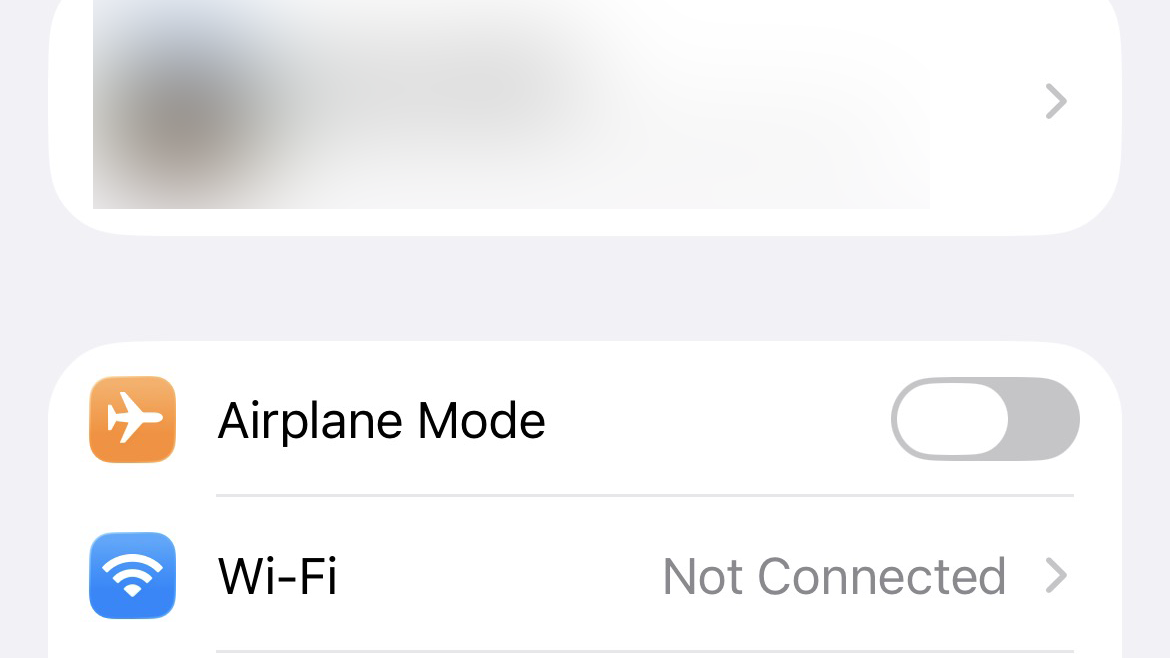
- Wait for 30 seconds, then tap the icon again to turn it off.
2. Check for a Carrier Settings Update
Your carrier may have released a new update to fix this issue or provide updated configurations. This check is crucial, as it directly relates to how network options are displayed.
- Ensure your iPhone is connected to Wi‑Fi or a cellular network.
- Go to Settings > General > About.
- Stay on this screen for 10‑15 seconds. If a carrier settings update is available, a pop‑up will appear. Tap Update. If nothing appears, your settings are current.
3. Remove and Reinsert Your SIM Card
Removing and reinserting your SIM card forces your iPhone to re‑read the carrier information stored on it and re‑establish a connection with the network. This can refresh the cellular settings and may restore the missing options.
- Power off your iPhone completely.
- Use a SIM‑eject tool or a small paperclip to open the SIM tray.
- Carefully remove the SIM card.
- Wait 30 seconds, then reinsert the SIM card.
- Power your iPhone back on.
4. Reset Network Settings
This is a more comprehensive step that erases all current network configurations—including Wi‑Fi passwords, cellular settings, and VPN profiles—and restores them to their factory defaults. This can often fix deep‑seated software issues related to network connectivity.
- Go to Settings > General > Transfer or Reset iPhone.
- Tap Reset > Reset Network Settings.

- Enter your passcode to confirm. Your iPhone will restart.
- After it reboots, you will need to reconnect to your Wi‑Fi networks. Check if the cellular options have returned.
5. Check for an iOS Update
If a bug in iOS 26 is causing the problem, Apple may have already released a minor update (like iOS 26.0.1) with a fix.
- Go to Settings > General > Software Update.

- If an update is available, tap Download and Install.
Ensuring the adaptive power feature is active can also help with overall battery and network stability.
6. Contact Your Carrier
If the options are still missing, the change may be intentional. Your carrier is the only one who can confirm if they have chosen to remove the ability to manually select 3G or 4G on your plan or device. Ask them directly if this is a permanent change for devices on their network running iOS 26.
If none of these solutions work, contact Apple Support for further assistance.



