
Fix: YouTube Notifications Missing on iPhone on iOS 26

SiPhone users in India and other regions have discovered that after updating to iOS 26, they are no longer receiving push notifications from the…

SiPhone users in India and other regions have discovered that after updating to iOS 26, they are no longer receiving push notifications from the YouTube app. The problem can be especially confusing when, as one user in an Apple Community discussion pointed out, the entire “Notifications” menu disappears from within the YouTube app’s settings, making it impossible to manage alerts. This issue typically points to a breakdown in the communication between the YouTube app and the iPhone’s notification system, a misconfigured Focus Mode, or a bug in the app or iOS itself.
Why YouTube Notifications Fail on iOS
Getting a notification from YouTube is a two‑step process. First, your iPhone’s operating system must grant the YouTube app permission to send notifications. This is the master switch, usually set when you first install the app. Second, within the YouTube app’s own settings, you choose which specific notifications you want to receive (e.g., new subscriptions, comments, live streams).
If the first step fails—meaning iOS has not granted the app permission—the second step becomes irrelevant. This is why the notification settings menu can disappear from inside the YouTube app. The app recognizes that it doesn’t have system‑level permission to send alerts, so it hides the options to configure them. The fix, therefore, is often to re‑establish that initial permission.
How to Fix Missing YouTube Notifications
Follow these steps in order to diagnose and resolve the issue. The first few steps are crucial for restoring the in‑app notification settings menu if it has disappeared.
1. Check iOS Notification Settings for YouTube
This is the most important step. If notifications are disabled at the system level, nothing else will work. This setting controls whether the YouTube app is allowed to send notifications at all.
-
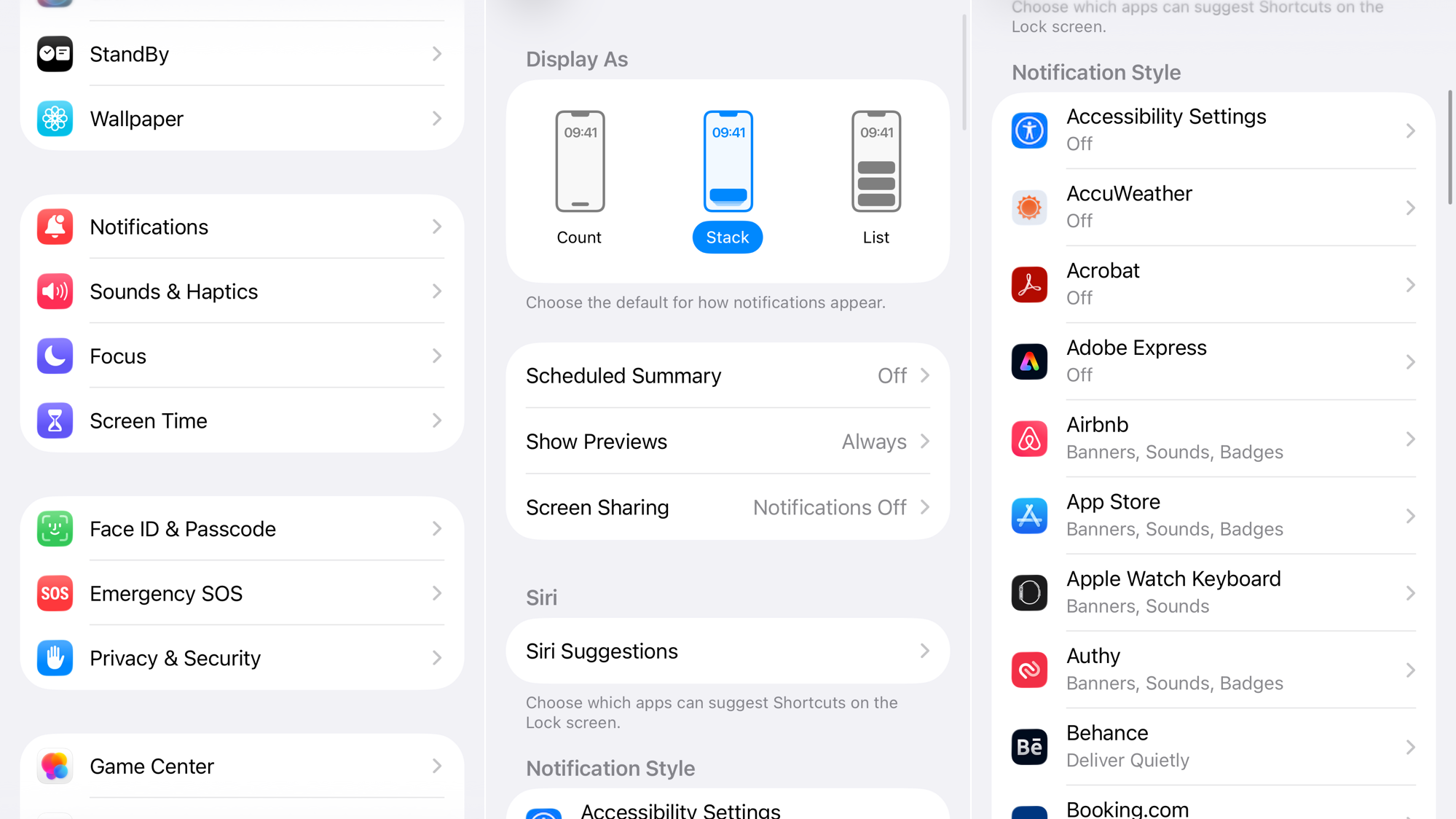
Go to Settings > Notifications.
-
Scroll down to the list of apps and tap on YouTube.
-
Ensure the Allow Notifications toggle at the top is turned on.
-
Also, make sure at least one option is checked under “Alerts” (Lock Screen, Notification Center, Banners).
If the system‑wide notifications seem fine but you still have trouble, a network hiccup could be to blame. Try to fix Wi‑Fi issues and then test again.
2. Disable Any Active Focus Mode
Focus modes like Do Not Disturb or Work are designed to silence notifications. It’s easy to accidentally leave one on, which would block all YouTube alerts.
- Go to Settings > Focus.
- Check if any Focus mode is currently active.
- If one is on, tap it and turn it off, or review its settings to ensure YouTube is listed as an allowed app.
3. Check Notification Settings Inside the YouTube App
Once you’ve confirmed iOS settings are correct, check the settings inside the app itself. If this menu was missing before, it may have reappeared after completing the steps above.
- Open the YouTube app.
- Tap your profile picture in the bottom‑right corner, then tap the Settings gear icon in the top‑right.
- Tap Notifications.
- Review the list and turn on the toggles for the types of notifications you want to receive.
If the UI feels sluggish or unresponsive while navigating these menus, you might be encountering a broader touch‑screen glitch.
4. Update the YouTube App and iOS
A bug in an older version of the YouTube app or iOS 26 could be causing the issue. Developers often release updates quickly to fix compatibility problems.
-
To update the app, open the App Store, tap your profile icon, and tap Update next to YouTube if an update is available.
-
To update your iPhone, go to Settings > General > Software Update.

5. Reinstall the YouTube App
Deleting and reinstalling the app forces it to re‑register with Apple’s push‑notification service and prompts you to grant permission again. This is a very effective way to fix corrupted permissions.
- Tap and hold the YouTube app icon on your Home Screen.
- Select Remove App > Delete App.
- Open the App Store, search for YouTube, and reinstall it.
- When you open the app for the first time, you will see a pop‑up asking for permission to send notifications. Tap Allow. This is a critical step.
6. Reset Network Settings
Push notifications rely on a stable connection to Apple’s servers. Resetting your network settings can resolve underlying connectivity issues that may be interfering with this connection.
-
Go to Settings > General > Transfer or Reset iPhone.
-
Tap Reset > Reset Network Settings.

-
Your iPhone will restart, and you will need to re‑enter your Wi‑Fi passwords.
If none of these solutions work, contact Apple Support for further assistance.



