
Fix: Push Notifications Not Working After iOS 26

After updating to iOS 26, many users are experiencing a frustrating issue where push notifications from certain apps fail to appear. This problem seems…

After updating to iOS 26, many users are experiencing a frustrating issue where push notifications from certain apps fail to appear. This problem seems particularly common for critical applications, with users in an Apple Community discussion specifically noting that notifications from banking and authenticator apps like Duo are no longer arriving. This issue can be caused by a misconfigured Focus mode, incorrect app‑specific settings, a temporary network glitch, or a bug within the new iOS version.
Why Push Notifications Fail
Push notifications on your iPhone rely on the Apple Push Notification service (APNs). When an app needs to send you an alert, its server sends the notification to Apple’s servers, which then “push” it to your device. This process requires a constant, stable connection and the correct permissions on your iPhone.
A failure can occur at several points. The most common cause is a setting on your device, such as an active Focus mode (like Do Not Disturb or Work) that is intentionally silencing alerts. An iOS update can also sometimes corrupt the unique “token” an app uses to receive notifications, preventing them from being delivered. Finally, a bug in the new operating system can interfere with the connection to Apple’s notification servers.
How to Fix Push Notifications Not Working
Work through these steps in order, starting with the most common and least invasive solutions.
1. Check Your Active Focus Mode
Focus modes are the number one reason for unexpectedly silent notifications. An active Focus can block alerts from specific apps or people, and it’s easy to forget one is enabled.
- Go to Settings > Focus.
- Check if any of the Focus modes listed (e.g., Do Not Disturb, Personal, Work) are turned on.
- If a Focus is active, tap on it. You can either turn it off or tap Apps under “Allow Notifications” to ensure the apps you need are not being silenced.
2. Verify Notification Settings for the App
It’s possible that permissions for a specific app were disabled during the update. You must check that the app is still configured to send you notifications.
- Go to Settings > Notifications.
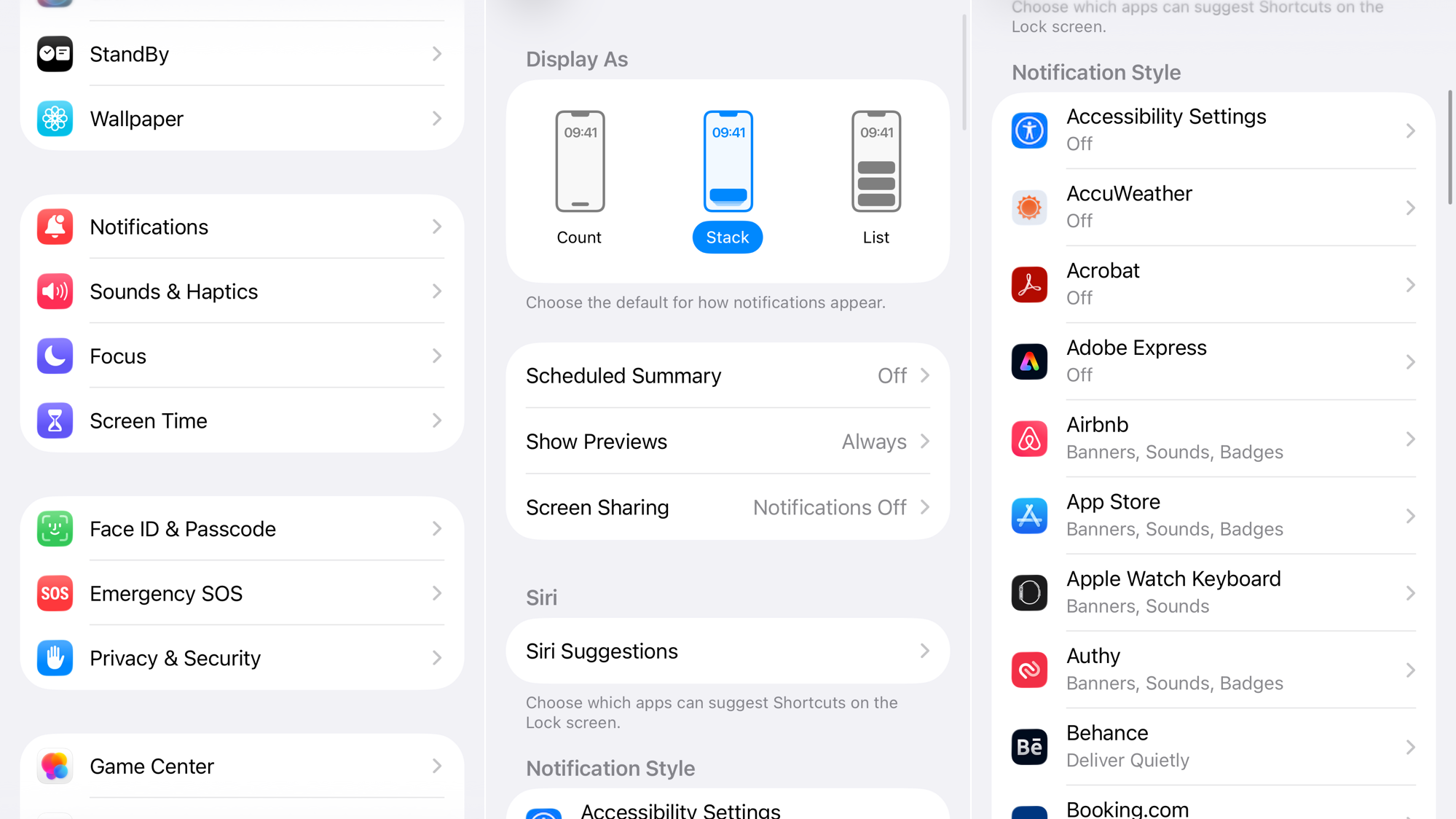
- Scroll down to the “Notification Style” section and tap the name of the app you’re having issues with (e.g., your banking app).
- Ensure the Allow Notifications toggle at the top is turned on.
- Confirm that you have at least one alert type selected under “Alerts” (Lock Screen, Notification Center, Banners).
For apps like YouTube, you can also refer to our specific guide to fix YouTube notifications, which walks through both system and in‑app settings.
3. Restart Your iPhone
A simple restart can often resolve temporary software glitches by closing all running processes and re‑establishing a fresh connection to Apple’s notification servers.
- Press and hold the side button and either volume button until the “slide to power off” slider appears.
- Drag the slider to turn off your device.
- After 30 seconds, press and hold the side button again until the Apple logo appears.
4. Check for an iOS Update
Apple frequently releases small follow‑up updates to fix bugs discovered after a major launch. The notification issue might be a known problem that has already been patched.
- Go to Settings > General > Software Update.

- If an update is available, tap Download and Install.
5. Reinstall the Problematic App
Deleting and reinstalling an app forces it to re‑register with the Apple Push Notification service. This creates a new, valid notification token and often resolves issues where an app has lost its connection. This is an especially effective fix for authenticator and banking apps.
- Find the app icon on your Home Screen.
- Tap and hold the app icon, then select Remove App > Delete App.
- Open the App Store, search for the app, and reinstall it.
- When you first open the newly installed app, make sure to tap Allow when it asks for permission to send you notifications.
6. Reset All Settings
If the problem persists across multiple apps, a system‑level setting may be corrupted. Resetting all settings will restore notification, network, and other preferences to their defaults without deleting your personal data, photos, or apps.
- Go to Settings > General > Transfer or Reset iPhone.
- Tap Reset > Reset All Settings.

- Enter your passcode to confirm. Your iPhone will restart.
If none of these solutions work, contact Apple Support for further assistance.
Tip: Enabling the adaptive power feature can also help conserve battery while you troubleshoot notification problems.



