
Fix: Lock Screen Camera Icon Not Working iOS 26

The camera icon on the iPhone lock screen is designed for quick, one‑press access so you never miss a moment. When this icon…

The camera icon on the iPhone lock screen is designed for quick, one‑press access so you never miss a moment. When this icon suddenly becomes unresponsive after an update to iOS 26, it can be incredibly frustrating. Users have reported that tapping or swiping on the camera button does nothing, leaving them unable to open the app without first unlocking their device. As noted in this Apple Community discussion, this issue can feel like a bug, but it is often caused by a subtle change in the required gesture, a hidden software setting, or a temporary glitch from the update process.
Why the Lock Screen Camera Icon Stops Working
The lock screen shortcuts for the flashlight and camera are integrated directly into the iOS interface. A major software update can sometimes corrupt the preferences for these controls or, more commonly, change how they operate. For instance, Apple may change the required gesture from a simple tap to a long press with haptic feedback.
Another frequent cause is a restriction setting you may not be aware of. The Screen Time feature allows you to disable certain apps, including the Camera. If the Camera app is restricted, its lock screen shortcut will be disabled as well, even though the icon may still be visible. Finally, minor software conflicts during the update can cause these small but essential features to stop responding until the system is refreshed.
How to Fix the Lock Screen Camera Icon
Follow these steps to diagnose and fix the unresponsive camera button on your iOS 26 lock screen.
1. Use the Correct Gesture: Long Press the Icon
The most common reason the camera icon seems broken is a change in how you activate it. Instead of a quick tap, newer versions of iOS require a deliberate press‑and‑hold action.
- Wake your iPhone to show the lock screen.
- Press and hold your finger firmly on the Camera icon.
- Keep pressing until you feel a small haptic vibration and the Camera app opens.
2. Check Screen Time Restrictions
If the Camera app has been accidentally disabled in Screen Time, it will not open from anywhere, including the lock screen.
- Go to Settings > Screen Time.
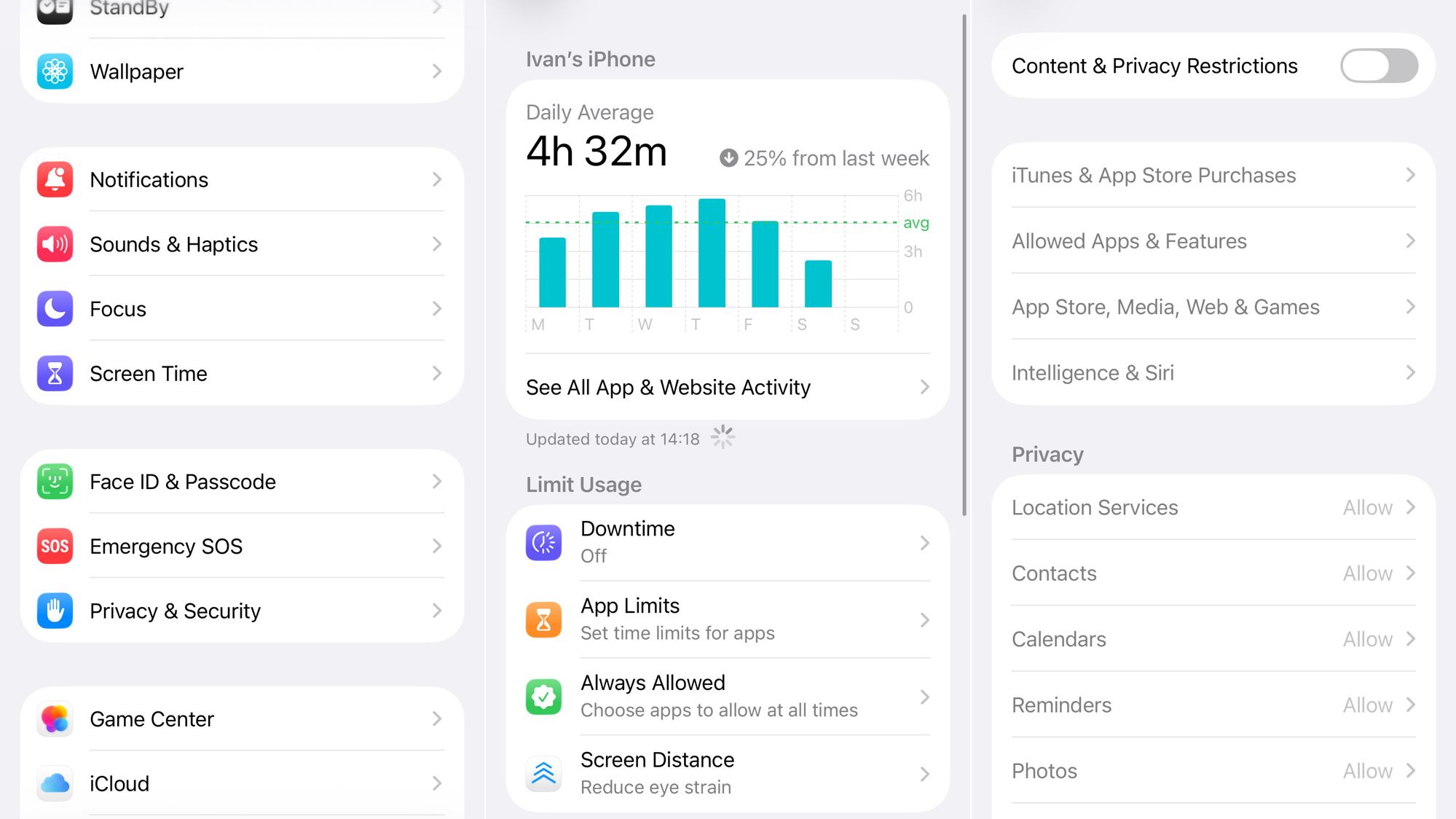
- Tap Content & Privacy Restrictions. If it’s off, this is not the cause of your issue.
- If it’s on, tap Allowed Apps.
- Enter your Screen Time passcode if prompted.
- Make sure the toggle next to Camera is turned on (green).
Performance issues like overheating can also affect responsiveness; consider how to fix iPhone overheating.
3. Force Restart Your iPhone
A force restart is more powerful than a standard restart and is highly effective at clearing out temporary software glitches that can affect system functions like lock screen controls.
- Press and quickly release the volume up button.
- Press and quickly release the volume down button.
- Press and hold the side button until you see the Apple logo appear, then release.
4. Check for an iOS Update
If the issue is a widespread bug in the initial iOS 26 release, Apple will likely release a fix in a subsequent patch.
- Go to Settings > General > Software Update.

- If an update is available (e.g., iOS 26.0.1), tap Download and Install.
5. Customize the Lock Screen
Removing and re‑adding the camera shortcut can sometimes refresh its settings and restore functionality.
- Wake your iPhone and long‑press on the lock screen until the customization view appears.
- Tap Customize and select Lock Screen.
- Tap on the widget area where the camera icon is located (bottom right).
- Select a different shortcut from the list, then tap the Camera icon again to re‑select it.
- Tap Done to save your changes.
If the lock screen remains sluggish, you might also want to fix home screen lag.
If none of these solutions work, contact Apple Support.



