
Fix: 5G/LTE Data Not Working on eSIM After iOS 26

After updating to iOS 26, you may find that your iPhone’s cellular data has stopped working on your eSIM. A common symptom of this…

After updating to iOS 26, you may find that your iPhone’s cellular data has stopped working on your eSIM. A common symptom of this issue is seeing full signal bars and a 5G or LTE icon at the top of your screen, but being unable to connect to the internet. As described in this Apple Community discussion, this frustrating problem can persist even after basic troubleshooting, suggesting a deeper issue between the new software and the cellular connection. The problem is almost always caused by a software glitch that corrupts the eSIM profile or disrupts the network settings during the update process.
Why 5G/LTE Data Fails on an eSIM
An eSIM (embedded SIM) is a digital profile downloaded from your carrier that allows your iPhone to connect to their network. Unlike a physical SIM card, all the connection and authentication data is stored in software. A major operating system update like iOS 26 makes significant changes to your iPhone’s core software, including the components that manage cellular communications.
During this update, the digital eSIM profile can become corrupted, or the network settings (like the APN, which directs data traffic) can be misconfigured. This creates a situation where your iPhone can still connect to the cellular network for calls and texts (hence the signal bars), but it fails the authentication required to use mobile data, leaving you without an internet connection.
How to Fix 5G/LTE Data Not Working on an eSIM
These solutions are ordered from the simplest and quickest to the more involved. Test your data connection after each step.
1. Toggle Airplane Mode
This is the quickest way to force your iPhone to disconnect from and reconnect to the cellular network, which can resolve temporary connection glitches.
- Open Control Center by swiping down from the top‑right corner of your screen.
- Tap the Airplane Mode icon to turn it on (it will turn orange).
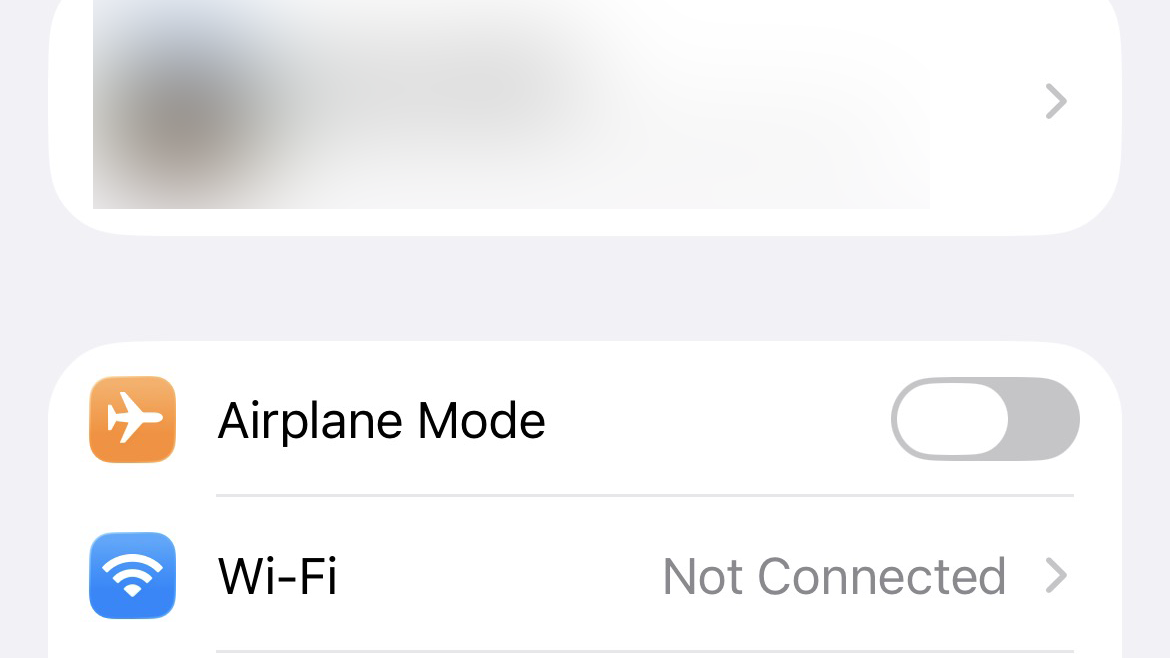
- Wait about 30 seconds, then tap the icon again to turn it off.
2. Turn Your Cellular Line Off and On
This specifically resets the connection for your eSIM without affecting your other settings.
- Go to Settings > Cellular.
- Tap on the eSIM plan that is not working.
- Turn off the toggle for Turn On This Line.
- Wait 15 seconds, then turn the toggle back on.

3. Restart Your iPhone
A full restart can clear out software bugs and corrupted temporary data that may have occurred during the iOS 26 update.
- Press and hold the side button and either volume button until the power‑off slider appears.
- Drag the slider to power off the device.
- After 30 seconds, press and hold the side button again until the Apple logo appears.
4. Check for a Carrier Settings Update
Your carrier often releases small updates to ensure their network is compatible with a new version of iOS. Your iPhone may need this update to restore data functionality.
- Ensure you are connected to Wi‑Fi.
- Go to Settings > General > About.
- Simply wait on this screen for 15‑30 seconds. If a carrier settings update is available, a pop‑up will appear. Tap Update.
5. Switch to LTE if 5G is Not Working
This is a useful diagnostic step. If LTE works but 5G doesn’t, the issue lies with your carrier’s 5G provisioning for your account.
- Go to Settings > Cellular > [Your eSIM Plan] > Voice & Data.
- Select LTE instead of 5G Auto or 5G On.
- If your data now works, contact your carrier to report an issue with their 5G service.
6. Reset Network Settings
This is a more comprehensive reset that erases all saved cellular and Wi‑Fi settings, forcing your iPhone to establish fresh connections.
- Go to Settings > General > Transfer or Reset iPhone.
- Tap Reset > Reset Network Settings. Your iPhone will restart.

- Note: You will need to re‑enter your Wi‑Fi passwords after this step.
7. Remove and Re‑add Your eSIM
If the eSIM profile itself is corrupted, the only solution is to delete it and install a fresh one from your carrier.
- Ensure you have a stable Wi‑Fi connection and your eSIM activation details (usually a QR code) from your carrier.
- Go to Settings > Cellular.
- Tap on your eSIM plan, then tap Delete eSIM.
- Once deleted, tap Add eSIM and follow your carrier’s instructions to scan the QR code and reactivate your plan.
Ensuring the adaptive power feature is active can also help with overall battery and network stability.
If none of these solutions work, contact your carrier. They may need to re‑provision your account on their end or issue you a new eSIM profile. If the issue persists, you may need to contact Apple Support for further assistance.



