
How to Create Personal Voice Faster in iOS 26

Personal Voice is a groundbreaking accessibility feature on the iPhone that allows you to create a digital version of your own voice. It’s…

Personal Voice is a groundbreaking accessibility feature on the iPhone that allows you to create a digital version of your own voice. It’s designed for individuals who may be at risk of losing their ability to speak, providing them with a way to communicate that sounds just like them. Think of it as creating a vocal backup, ensuring you can still express yourself in your own voice in FaceTime, phone calls, and other apps.
In previous versions, creating a Personal Voice was a lengthy process that required reading 150 different phrases. With iOS 26, Apple has made this feature significantly more accessible. You can now create a high‑quality digital voice by reading just 10 phrases, drastically reducing the time and effort needed.
How to Create Your Personal Voice
The entire process is done securely on your device. For the best results, find a quiet room where you won’t be interrupted, and make sure your iPhone is updated to iOS 26.
- Open the Settings app on your iPhone.
- Scroll down and navigate to Accessibility > Personal Voice. You will find this option under the “Speech” section.
- Tap Create a Personal Voice to begin.
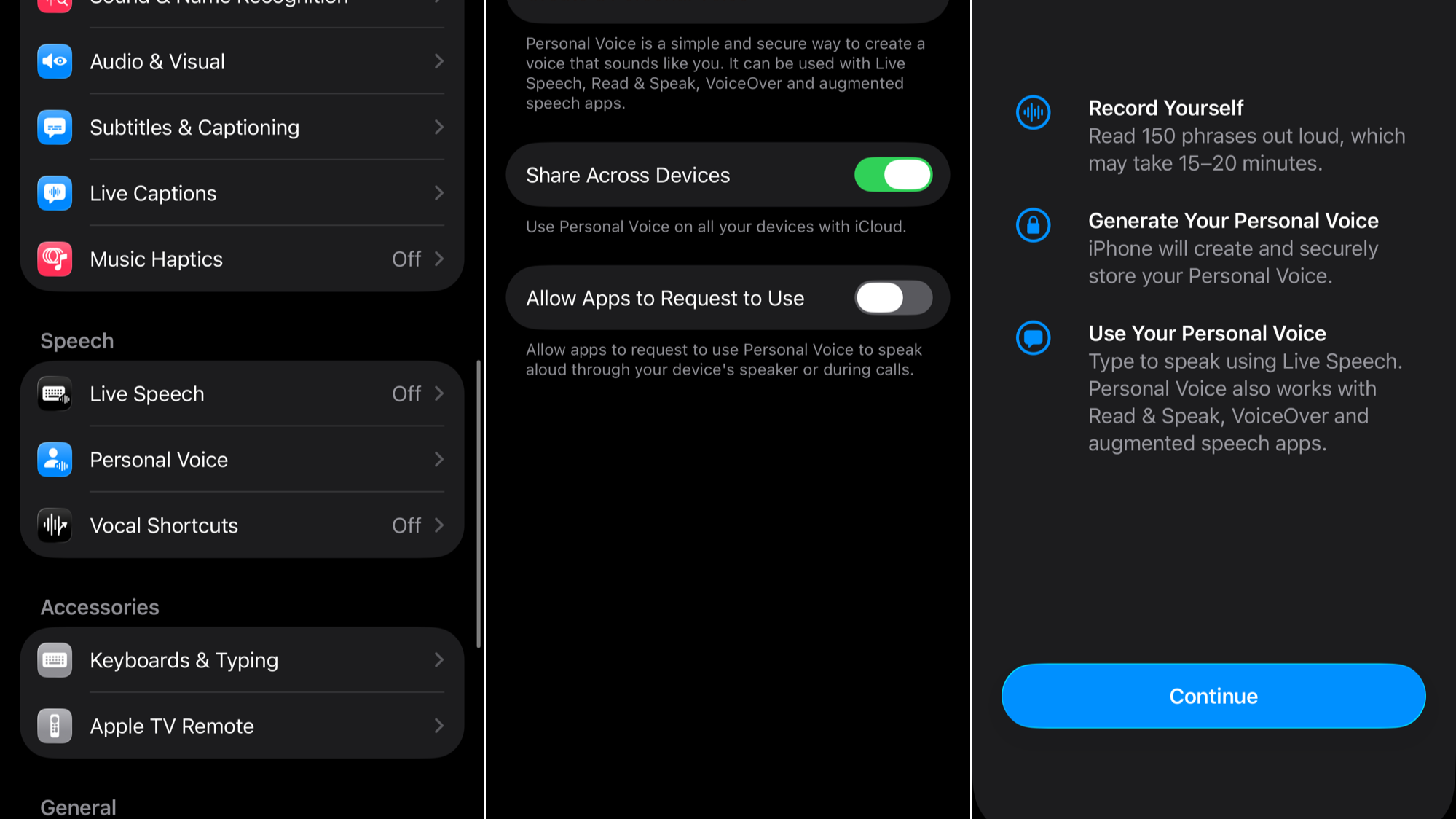
- You will be prompted to authenticate with Face ID, Touch ID, or your passcode to proceed.
- Follow the on‑screen instructions to record 10 randomly selected phrases. Hold your iPhone about six inches from your mouth and speak clearly and consistently.
- Once you have recorded all 10 phrases, the setup is complete. To generate the voice, you must plug your iPhone in to charge and lock the screen. The processing happens overnight or while the device is not in use.
The on‑device processing is much faster in iOS 26, but the total time will vary. You will receive a notification when your Personal Voice is ready to use. Because the generation runs while the phone is charging, you might also consider enabling the adaptive power feature to keep energy use efficient.
How to Use Your Personal Voice
After your voice has been generated, you can use it with another accessibility feature called Live Speech.
- Go to Settings > Accessibility > Live Speech.
- Turn the toggle for Live Speech on.
- Under the “Voices” section, tap your current voice selection and choose the Personal Voice you just created. It will be listed with your name.
Now, you can triple‑click the side button (or Home button on older devices) at any time to bring up the Live Speech interface. Type what you want to say, and your iPhone will speak it aloud in your own voice. This works system‑wide, including in phone calls, FaceTime calls, and in‑person conversations.
Important Things to Know
- Device Compatibility: Personal Voice is available on iPhone 12 models and later.
- Language Support: The feature currently supports English and Mandarin Chinese.
- Multiple Voices: You can create and store more than one Personal Voice on a single device.
- Secure and Private: The entire voice creation process happens on your device to protect your privacy. Your voice data is not sent to Apple.
If the overnight processing makes your device feel warm, you can fix iPhone overheating by following the recommended steps.



