
Fix: Cannot Share Reminders on iPhone iOS 26

After updating to iOS 26, you may find that sharing a Reminders list has become confusing or simply doesn’t work. For many users, the…

After updating to iOS 26, you may find that sharing a Reminders list has become confusing or simply doesn’t work. For many users, the option to share seems to have disappeared, making it difficult to collaborate on lists with family or colleagues. As discussed in this Apple Community discussion, the problem can be twofold: either the user interface for sharing has changed, or there is an underlying technical issue preventing the connection. Most often, this is caused by incorrect iCloud settings, a synchronization glitch, or the need to upgrade the Reminders app itself.
Why Sharing Reminders Fails
Sharing a Reminders list is not like sending a text message; it’s a collaborative feature that relies entirely on iCloud to keep the list synchronized between multiple people. For this to work, a specific set of conditions must be met on both your device and the device of the person you are sharing with. Both users must be signed into iCloud, have both iCloud Drive and Reminders enabled in their iCloud settings, and be running a compatible version of iOS (iOS 13 or later).
If your device is having trouble connecting to iCloud, you might also want to fix Wi‑Fi issues to ensure a stable network connection.
A major update like iOS 26 can disrupt this system. The update process might accidentally toggle off a required iCloud setting, or a temporary bug could interfere with the sync service. In some cases, the Reminders app itself requires a one‑time upgrade to support new collaborative features, and if this step was missed, sharing will fail.
How to Fix Not Being Able to Share Reminders
Work through these solutions in order, starting with verifying the correct process before moving on to troubleshooting potential iCloud issues.
1. How to Share a List in iOS 26
The first step is to ensure you are using the correct method, as the user interface may be different from previous iOS versions.
- Open the Reminders app.
- Tap on the list you wish to share.
- Tap the Share button (a circle with three dots inside) located at the top‑right of the screen.
- Choose how you want to send the invitation, such as through Messages or Mail, and send it to your contact. The other person must accept this invitation for the list to be shared.
2. Verify iCloud Settings for Both People
This is the most common reason sharing fails. The feature cannot work unless both you and the other person have the correct settings enabled.
- On your iPhone, go to Settings > [Your Name] > iCloud.
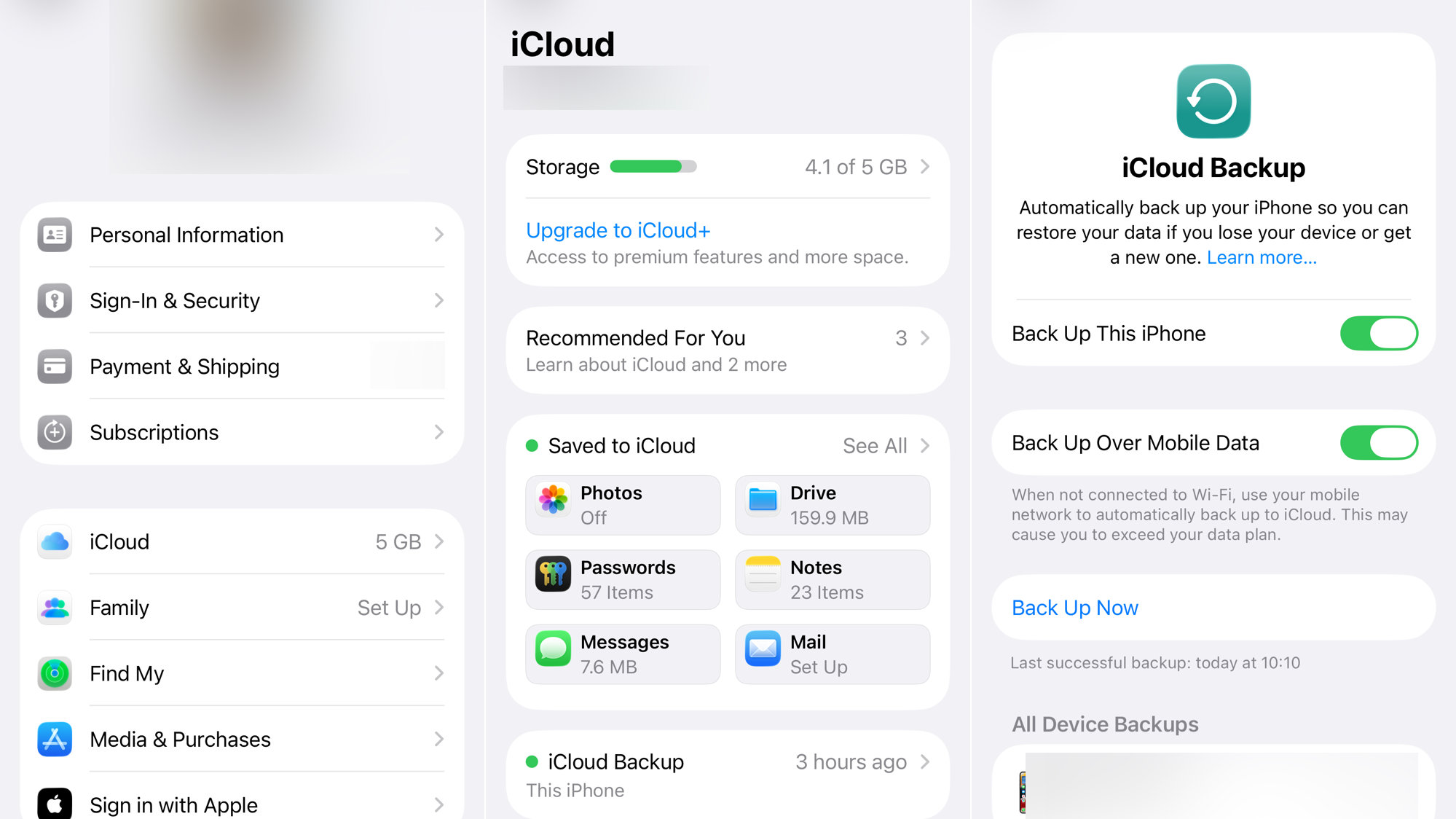
- Tap Show All under “Apps Using iCloud.”
- Ensure the toggle for Reminders is turned on.
- Go back to the main iCloud screen and make sure iCloud Drive is also turned on.
- Confirm that the person you are sharing with has completed these exact same steps on their device.
3. Restart Both iPhones
A simple restart can often resolve temporary software glitches and sync issues that prevent the sharing invitation from being sent or received correctly.
- Press and hold either volume button and the side button until the power‑off slider appears.
- Drag the slider to turn your iPhone off.
- After 30 seconds, press and hold the side button until the Apple logo appears.
- Ask the other person to restart their iPhone as well.
4. Upgrade the Reminders App
To use modern sharing features, your Reminders database may need to be upgraded to a new format. This is a one‑time process that is sometimes required after a major iOS update.
- Open the Reminders app.
- Look at the main lists screen. If you see a blue Upgrade button or prompt, tap it.
- Follow the on‑screen instructions. If you do not see this prompt, your app is already upgraded and you can skip this step.
5. Stop Sharing and Re‑Share the List
If a list appears to be shared but isn’t updating correctly, the existing connection may be corrupted. Resetting it can often fix the problem.
- In the Reminders app, open the list that is having issues.
- Tap the collaboration icon (a circle with a person’s silhouette).
- Tap Manage Shared List and remove the other person.
- Follow the steps in solution #1 to share the list again.
6. Toggle iCloud Reminders Sync
This step forces your iPhone to re‑download all Reminders data from iCloud, which can resolve more stubborn synchronization bugs.
- Go to Settings > [Your Name] > iCloud.
- Tap Show All and turn off the toggle for Reminders.
- When prompted, choose Keep on My iPhone.
- Wait about 30 seconds, then turn the toggle for Reminders back on.
If none of these solutions work, contact Apple Support.



