
Fix: Cannot Find Add eSIM Option on iPhone iOS 26

If you’ve updated your iPhone to iOS 26 and can no longer find the “Add eSIM” or “Add Cellular Plan” option in your settings,…

If you’ve updated your iPhone to iOS 26 and can no longer find the “Add eSIM” or “Add Cellular Plan” option in your settings, you are not alone. This confusing issue can prevent you from activating a new cellular line on your device. As highlighted in a recent Apple Community discussion, the cause isn’t always a software bug. While it can be a temporary glitch after an update, it is often due to a fundamental hardware limitation based on the country where your iPhone was originally sold.
Why the “Add eSIM” Option Disappears
The ability to use an eSIM is a hardware feature, not just a software setting. The most common reason for the “Add eSIM” option to be permanently missing is that the iPhone was manufactured for a region that does not support eSIM technology, most notably mainland China. These models are designed with two physical SIM card slots instead.
For iPhones that do support eSIM, the option can temporarily disappear due to other reasons. A major iOS update can cause a software glitch, a carrier settings update might be pending, or a parental control restriction could be blocking changes to your cellular plan. Identifying the correct cause is the key to finding a solution.
How to Fix a Missing “Add eSIM” Option
Start with the first step, as it can immediately determine if your iPhone is physically capable of supporting eSIM.
1. Check if Your iPhone Model Supports eSIM
Before trying any other fixes, you must verify that your specific iPhone model includes eSIM hardware. This is especially important for devices purchased secondhand or from another country.
- Go to Settings > General > About.
- Look for the Model Number. If you see a number with a slash (like MT5L3LL/A), tap on it to reveal the shorter model number (like A2848).
- The most important identifier is the part number ending in “/A”. If you see CN/A (e.g., MT5L3CH/A), your iPhone was manufactured for the mainland China market and does not have eSIM hardware.
- If your model is from a region without eSIM support, no software update or setting change can enable the feature.
2. Update to the Latest iOS Version
If your iPhone model does support eSIM, the missing option could be a software bug that Apple has addressed in a follow‑up patch.
- Go to Settings > General > Software Update.

- If a newer version of iOS is available, tap Download and Install.
3. Restart Your iPhone
A simple restart can clear temporary glitches that may have occurred during the iOS 26 update process, which can often restore missing settings options.
- Press and hold the side button and either volume button until the power‑off slider appears.
- Drag the slider to power off the device.
- After 30 seconds, press and hold the side button again until the Apple logo appears.
4. Check for Screen Time Restrictions
Parental controls or Screen Time settings can be configured to prevent changes to cellular account settings, which would hide the “Add eSIM” option.
- Go to Settings > Screen Time > Content & Privacy Restrictions.
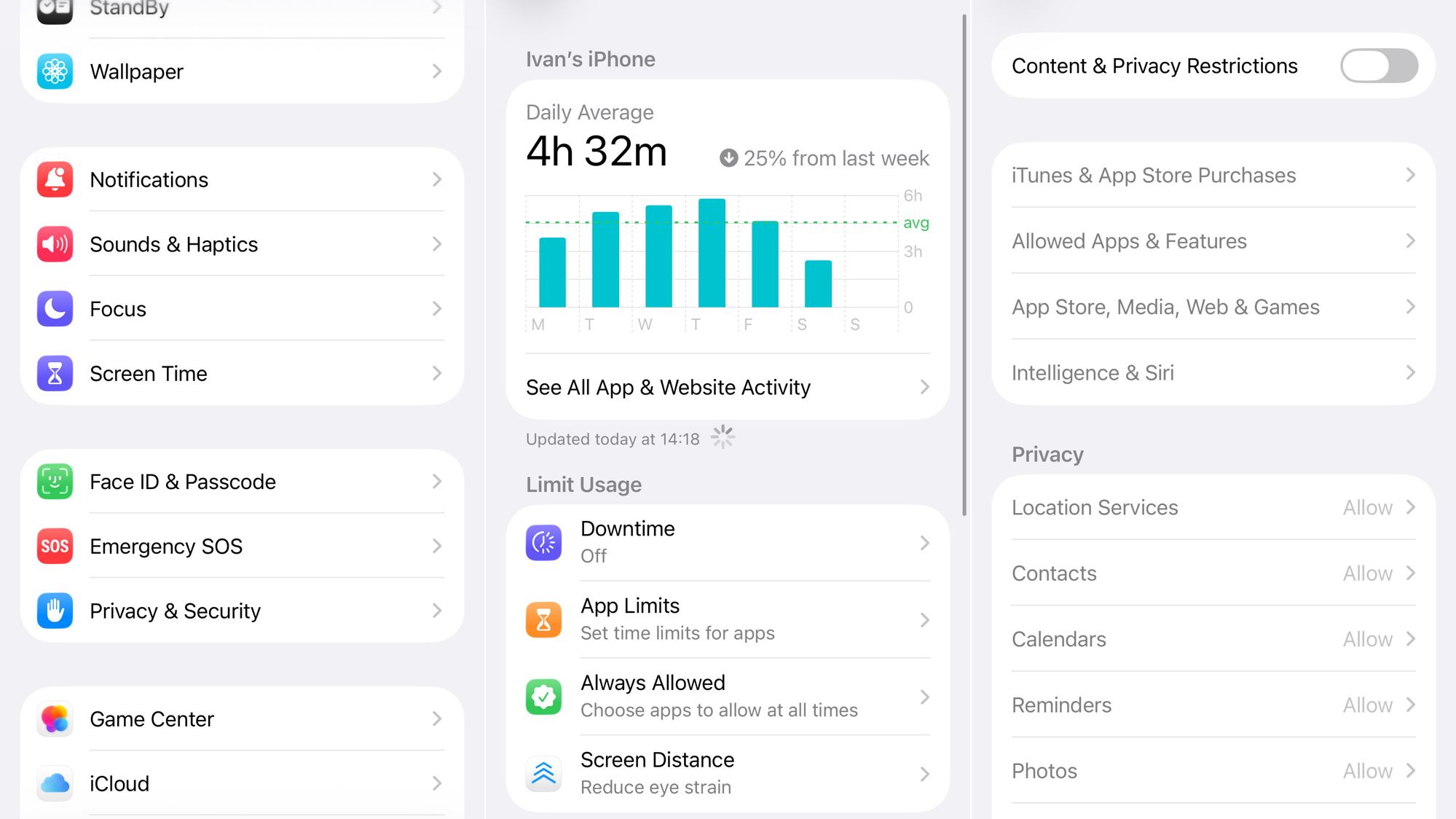
- Scroll down to the Allow Changes section and tap Account Changes.
- Ensure this is set to Allow.
5. Reset Network Settings
This action can resolve deeper software issues related to your iPhone’s cellular and wireless connectivity without erasing your personal data.
- Go to Settings > General > Transfer or Reset iPhone.
- Tap Reset > Reset Network Settings.

- Your iPhone will restart. You will need to re‑enter your Wi‑Fi passwords afterward.
If the option is still missing after these steps and you have confirmed that your iPhone model should support eSIM, you may be dealing with a deeper connectivity problem.
If none of these solutions work and you have confirmed your iPhone model should support eSIM, contact your cellular carrier to ensure your account is properly configured, then contact Apple Support for further assistance.



