
How to Add Notes to Your iPhone Home Screen

The Notes app on your iPhone is a great way to capture a thought before it disappears. You type out a reminder, a…

The Notes app on your iPhone is a great way to capture a thought before it disappears. You type out a reminder, a to-do list, or a sudden stroke of genius. It feels safe and sound — which means you might rarely think about whether you’ll ever see that note again. Placing a note directly on your home screen makes it visible and actionable, keeping your most important thoughts in sight.
With modern versions of iOS, you have a few ways to do this. The most popular methods involve using widgets, which display your note’s content directly on the screen, or creating a custom home screen icon that opens a specific note with a single tap. Both are simple to set up and make your notes much easier to get to.
These instructions are for iPhones running iOS 26, which features a new “Liquid Glass” design that helps widgets and icons blend beautifully with your wallpaper. Before starting, figure out what you need. If you want to see the note’s content at a glance, a widget is best. If you just need a quick way to open a specific note, a shortcut is the way to go.
Add a Note Widget to Your Home Screen
Widgets are the most direct way to see your notes right on your home screen. Apple’s built-in Notes widget offers a simple and clean way to display a note or a folder of notes. For a more personal touch, third-party apps like Sticky Widgets let you create colorful, digital sticky notes that pop.
Both options are added using the same process through your iPhone’s widget gallery. The main difference is how you set them up. The built-in widget is set up directly on your home screen, while third-party widgets are usually adjusted inside their own app to change colors, fonts, and more.
- Press and hold an empty area on your home screen until your apps start to jiggle.
- Tap the Edit icon in the top-left corner and open the widget gallery.
- Search for the widget you want to add. Type Notes for the built-in option, or the name of your third-party app, like Sticky Widgets.
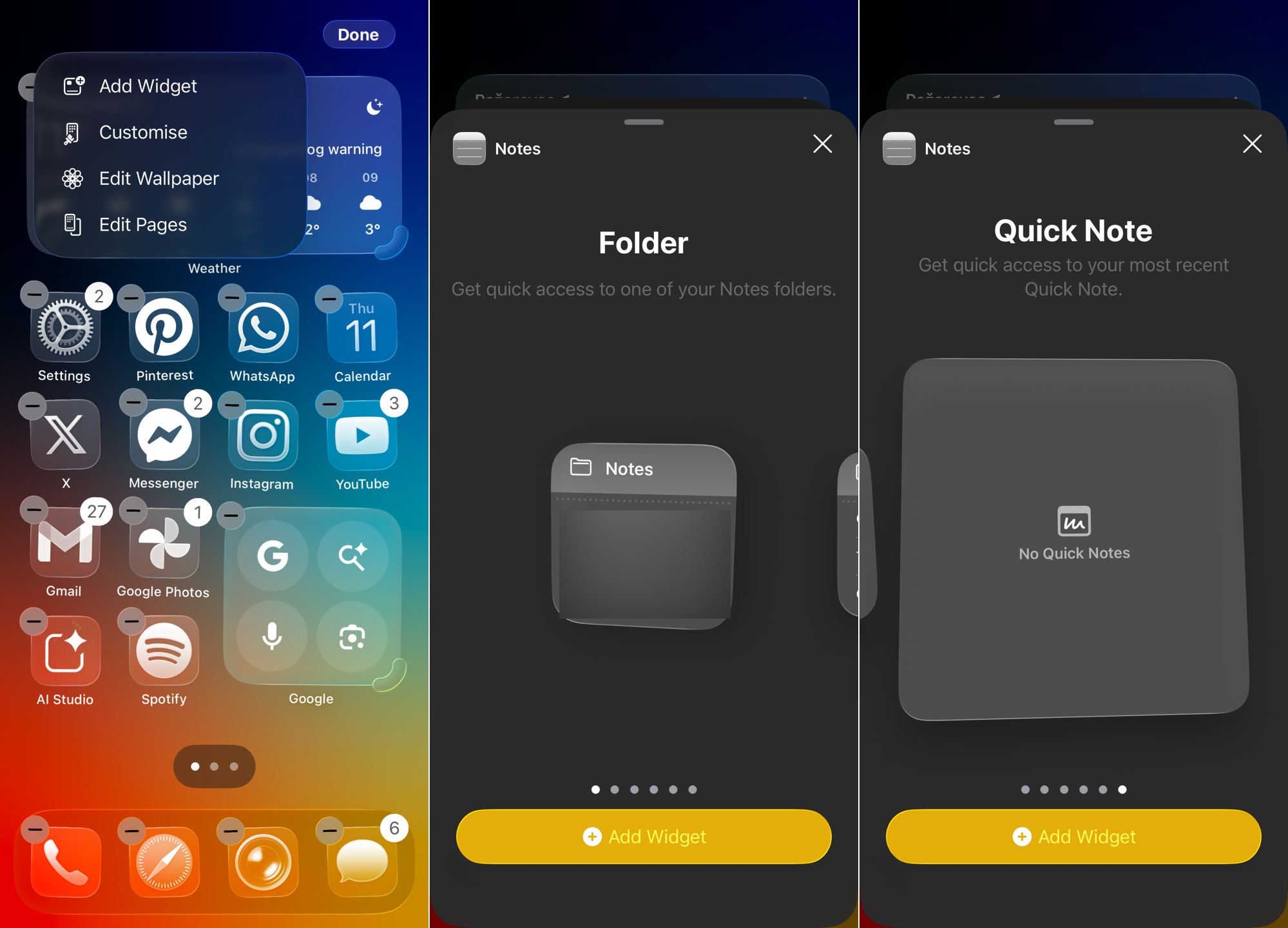
- Select the app from the search results, swipe to choose your preferred widget size, and tap Add Widget.
- The widget will now appear on your home screen. Tap it to choose what it displays.
If you chose the built-in Notes widget, tapping it will let you select a specific note or folder to show. If you chose an app like Sticky Widgets, tapping the widget will open the app itself. Inside the app, you can write your note and change its appearance with different background colors and fonts to match your home screen’s style.
Create a Home Screen Shortcut to a Specific Note
If you don’t need to see the content of a note all the time but want to open it quickly, a home screen shortcut is a better option. This method creates an icon that looks just like an app, but it opens directly to a specific note you choose. It’s perfect for a journal entry, a long-term project list, or any note you open often.
You’ll use the built-in Shortcuts app to create this link to your note. The process is straightforward and gives you a one-tap way to get to your information without digging through folders in the Notes app first.
- Open the Shortcuts app on your iPhone.
- Tap the + icon in the top-right corner to start building a new shortcut.
- Search for Notes find the Open Note action from the Notes app.
- Tap the blue “Note” placeholder text in the action and select the specific note you want the shortcut to open.
- Tap the Share icon at the bottom of the screen, which looks like a square with an arrow pointing up.
- From the menu, select Add to Home Screen.
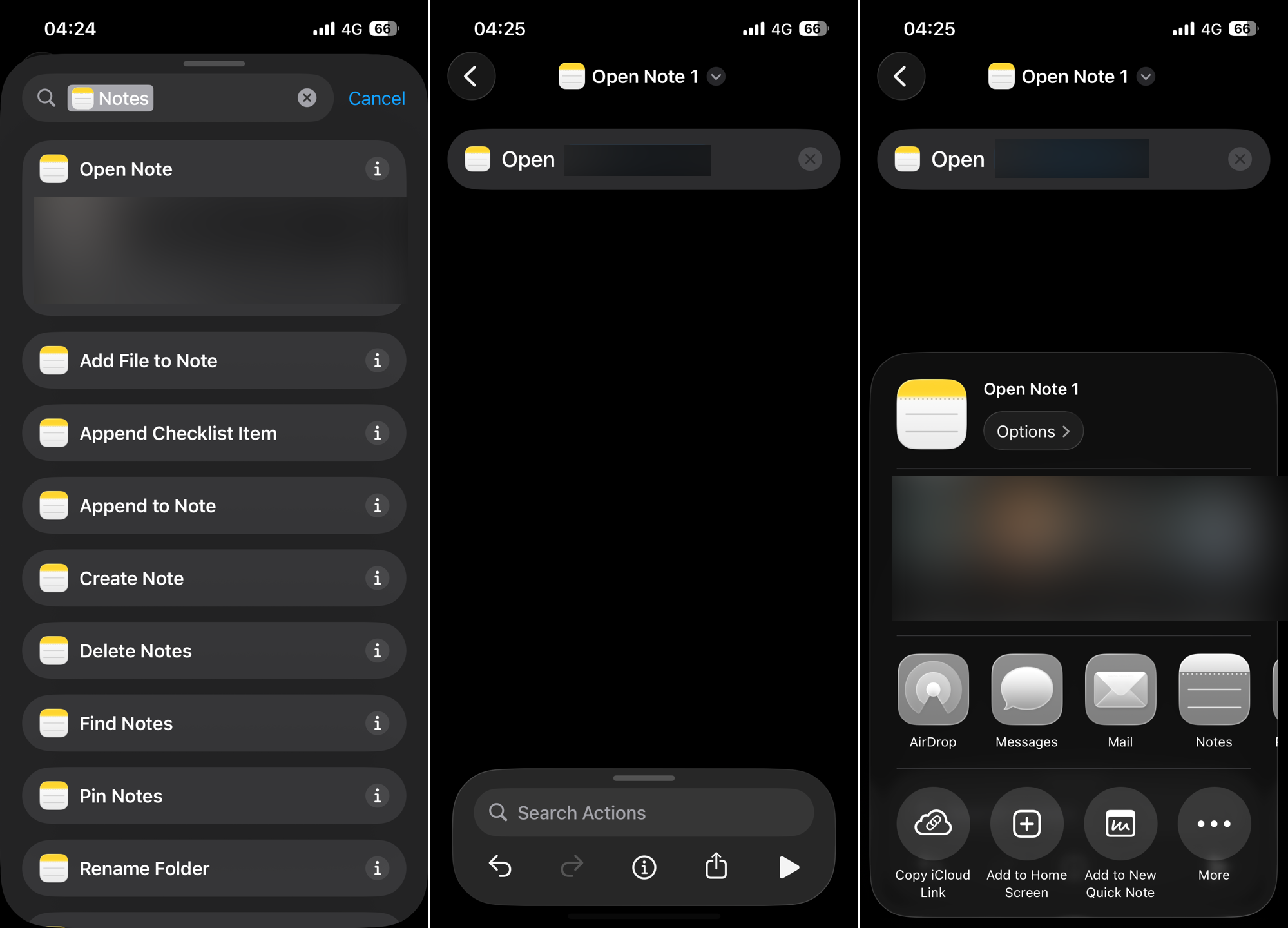
- Give your shortcut a name that will appear under its icon, then tap Add.
An icon for your note will now appear on your home screen among your other apps. Tapping it will immediately open the Notes app and your selected note, skipping all other menus. You can create as many of these shortcuts as you need for different notes.
Your home screen is now more useful, with your most important notes right where you can see them. Whether you chose a widget for constant visibility or a shortcut for quick access, you’ve made finding and using your notes much easier.
To save even more space, remember that you can stack multiple widgets on top of each other. Just drag one widget of the same size directly over another, and you’ll be able to scroll through them without cluttering up your screen.
For more tips on personalizing your device, you can learn how to customize your iPhone home screen. You might also want to explore more advanced automations with the Shortcuts app to further simplify your daily tasks.