
How to Add a Music Widget to Your iPhone Home Screen

Controlling your music from your iPhone screen is a great way to skip a track or see what’s playing without digging for the…

Controlling your music from your iPhone screen is a great way to skip a track or see what’s playing without digging for the app. It works like magic, which means you might not think about how to set it up until you need it. While it seems simple, the way you add music controls is quite different for your iPhone’s home screen versus its lock screen.
The main thing to know is that you can add a permanent, customizable widget to your home screen, but the lock screen uses a smart feature called “Now Playing.” This feature only appears when media is actively playing and vanishes when it stops. You don’t add it like other widgets, which can be confusing for many people.
This guide will show you how to handle both. The steps are simple and work on any modern iPhone running iOS 16 or later. You won’t need to install any special apps, as we’ll be focusing on Apple’s built-in features for Apple Music and other media apps like Spotify.
Add a Music Widget to Your Home Screen
The home screen music widget gives you a constant view of your recently played songs, albums, and playlists. It’s a great way to jump back into your music with a single tap, and depending on the size, you can even control your music right from the widget. You can place it anywhere on your home screen alongside your apps.
Adding the widget is easy and works just like adding any other widget to your iPhone. The Music app offers several sizes, each showing a different amount of info. The smallest widget just shows album art, while the largest one displays a list of your recently played tracks.
- Press and hold an empty area on your home screen until your apps start to jiggle.
- Tap the Edit icon in the top-left corner to open the widget gallery.
- Scroll down the list of apps and select Music.
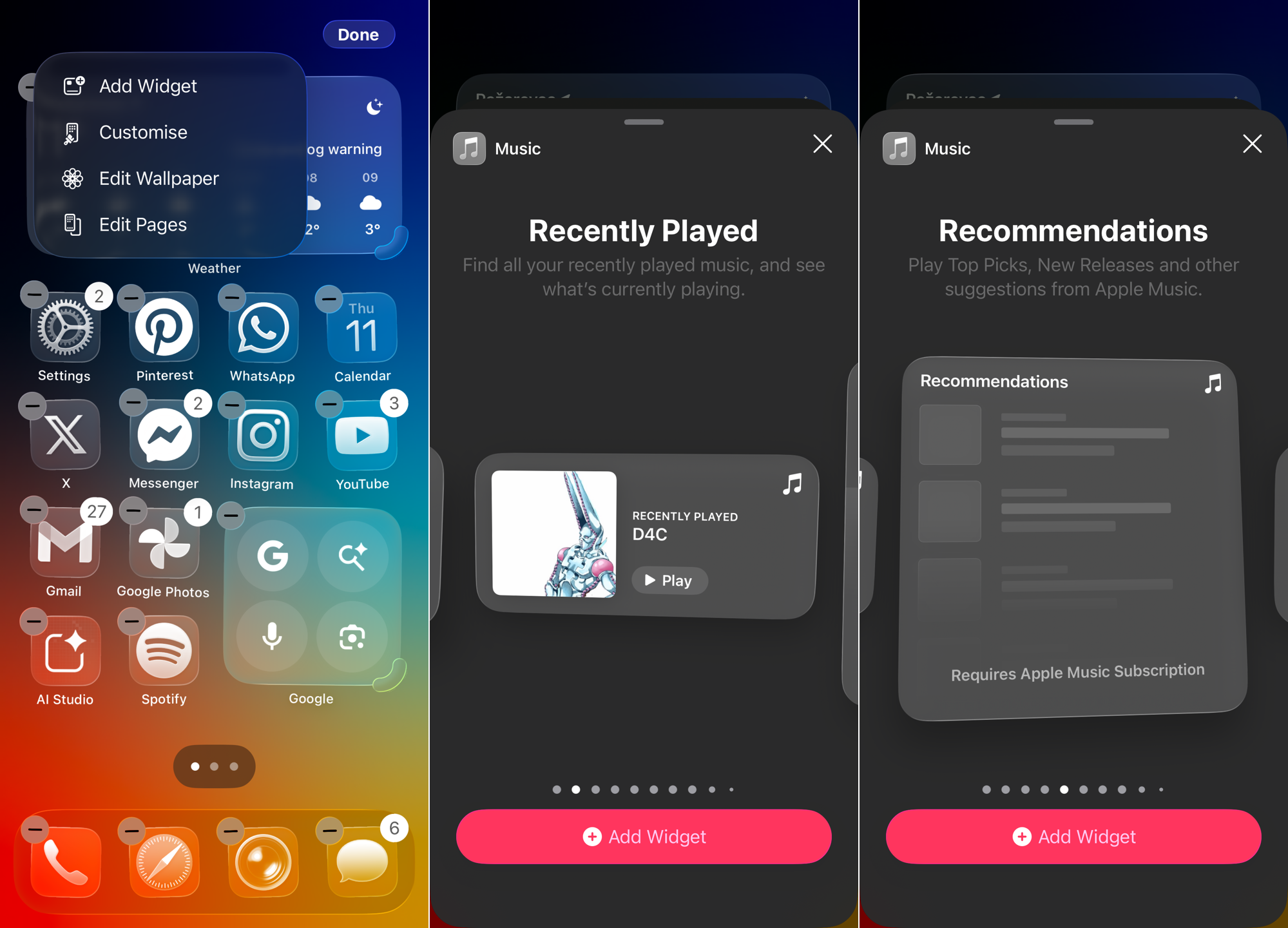
- Swipe left and right to choose the widget size you want (small, medium, or large).
- Tap Add Widget to place it on your home screen.
- Drag the widget to where you want it and tap Done in the top-right corner.
Once added, the medium and large widgets let you play and pause music directly. Tapping on any album or playlist shown in the widget will immediately open the Music app and start playing your selection, making it a really useful shortcut.
Manage Music from Your Lock Screen
Unlike the home screen, you can’t add a permanent music widget to your lock screen. Instead, iOS automatically shows a “Now Playing” player whenever you have audio playing from any app. This player gives you the main controls without needing to unlock your phone.
This feature is meant to be temporary, showing up when you need it and going away when you don’t. It shows the album art, song title, and artist, along with playback controls. If you want to see a full-screen version with a color-matched background, just tap on the album art. Tapping it again will shrink it back to the small player.
- Open any media app (like Music or Spotify) and start playing a song or podcast.
- Lock your iPhone by pressing the side button.
- The Now Playing widget will automatically appear at the bottom of your lock screen.
- Use the play/pause and skip buttons to control your audio right from the lock screen.
Sometimes, the “Now Playing” widget might stick around on your lock screen even after you’ve stopped listening. If this happens, the quickest fix is usually to force-quit the music app you were using. If that doesn’t work, a simple restart of your iPhone will almost always fix the problem.
With these set up, you now have much better control over your music. The home screen widget gives you a constant shortcut to your favorite music, while the automatic lock screen player gives you handy access to controls right when you need them. Your iPhone should now feel more like your own personal music player.
For more ways to personalize your phone, you can learn how to customize your iPhone lock screen. You might also be interested in finding out how to use Smart Stacks to group multiple widgets into one.