What’s Kernel Security Check Failure error and 7 best solutions

The “Kernel Security Check Failure” BSOD on Windows can scare a hell out of you sometimes. But it’s usually fixable. Below is a…

The “Kernel Security Check Failure” BSOD on Windows can scare a hell out of you sometimes. But it’s usually fixable. Below is a breakdown of the glitch’s easy-to-follow solutions—from updating drivers to checking system files. No need to be tech-savvy. We will hold your hand every step of the way. Dive in to turn that blue screen into a thing of the past.
Reasons for “Kernel Security Check Failure”
- Memory Issues: Faulty RAM or hardware can lead to memory corruption, causing this error.
- Corrupted System Files: System file corruption can disrupt the normal operation of Windows and trigger BSOD errors.
- Driver Conflicts or Outdated Drivers: Incompatible, outdated, or corrupt drivers can cause conflicts with the system kernel.
- Virus or Malware Infection: Malicious software can corrupt system files or kernel data, leading to this security check failure.
- Disk Errors: Bad sectors or errors on the hard drive can corrupt system files or data accessed by the kernel.
- Software Incompatibilities: Certain software might be incompatible with the current version of Windows, leading to system instability.
Solutions to Fix “Kernel Security Check Failure”
Solution 1: Check Memory (RAM)
Memory issues are a common cause of this error, so running a memory check is a good first step.
Here’s how to check your RAM:
- Open the Start menu, type “Windows Memory Diagnostic,” and select it.
- Choose “Restart now and check for problems” to run the memory test. Follow any on-screen instructions after the test completes.
Solution 2: Update or Reinstall Drivers
Outdated or corrupt drivers should be updated or reinstalled, especially graphics and chipset drivers.
Here’s how to update drivers:
- Right-click the Start button and select Device Manager.
- Expand the categories and look for any devices with a yellow exclamation mark, which indicates issues.
- Right-click on the device and select “Update driver.” Alternatively, visit the manufacturer’s website to download drivers.
Solution 3: Run System File Checker (SFC) and Check Disk (CHKDSK)
These tools can fix corrupted system files and disk errors, respectively.
Here’s how to run SFC and CHKDSK:
-
- Open Command Prompt as Administrator.
- Type
sfc /scannowand press Enter to run SFC.
- After SFC completes, type
chkdsk /f /rand press Enter to schedule CHKDSK. Restart your computer to let CHKDSK run.

Solution 4: Scan for Malware
Perform a full system scan with Windows Defender or another antivirus to remove any malware.
Here’s how to scan for malware:
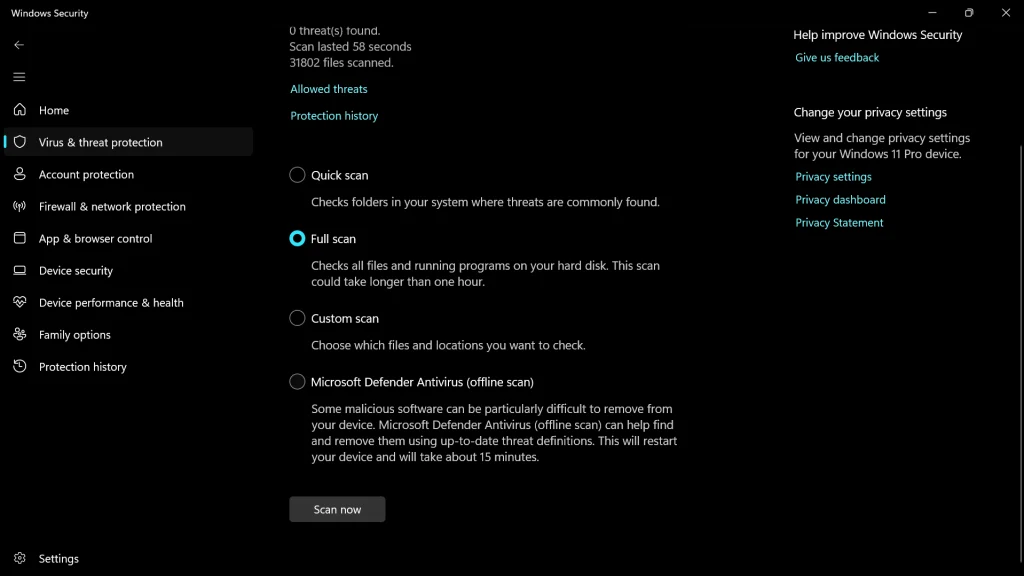
- Open Windows Security.
- Click on “Virus & threat protection” and then on “Scan options.”
- Choose “Full scan” and click “Scan now.”

Solution 5: Check for Windows Updates
Keeping Windows up to date can prevent many BSOD errors by fixing known bugs and vulnerabilities.
Here’s how to check for updates:
- Go to Settings > Update & Security > Windows Update.
- Click “Check for updates” and install any available updates.


Solution 6: Perform a System Restore
If the error started appearing recently, restoring your system to an earlier point might resolve the issue.
Here’s how to perform a system restore:
- Type “Create a restore point” in the Start menu search and hit Enter.
- Go to the System Protection tab and click “System Restore.”
- Follow the prompts to choose a restore point and restore your system.
Solution 7: Check for Hardware Issues
If you suspect hardware issues, consider running diagnostic tests provided by your hardware manufacturer or consulting with a professional.
In short, you should not find “Kernel Security Check Failure” a hard task to deal with. Basically, this article is advice on root diagnostics and the problem’s solutions per se. A similar error can be merely avoided in the future if you have the habit of regular updating and checks of your system.
With a pinch of patience and simple steps, you will be able to keep your Windows operating system in a good working order and without the appearance of unwanted BSODs.
Here’s to uninterrupted computing and the peace of mind that comes with a well-maintained PC!