How to tell if someone is accessing your iPhone

In the age of Apple Intelligence and always-on cloud sync, your iPhone holds more about you than ever. Knowing when something is wrong,…
In the age of Apple Intelligence and always-on cloud sync, your iPhone holds more about you than ever. Knowing when something is wrong, and acting fast, is the difference between a close call and a full breach.
How to Tell If Someone Is Accessing Your iPhone
Most signs of unauthorized access are subtle. A slightly faster battery drain, an app you don’t remember installing, a 2FA prompt you didn’t trigger. None of these are conclusive on their own, but a pattern of them is.
Change Your Password Immediately and Sign Out From All Devices
If you suspect unauthorized access, changing your Apple ID password is the first thing to do. Everything else comes after.
Follow these steps:
- Open Settings.
- Tap your Account at the top.
- Select Sign-In & Security.
- Tap Change Password.
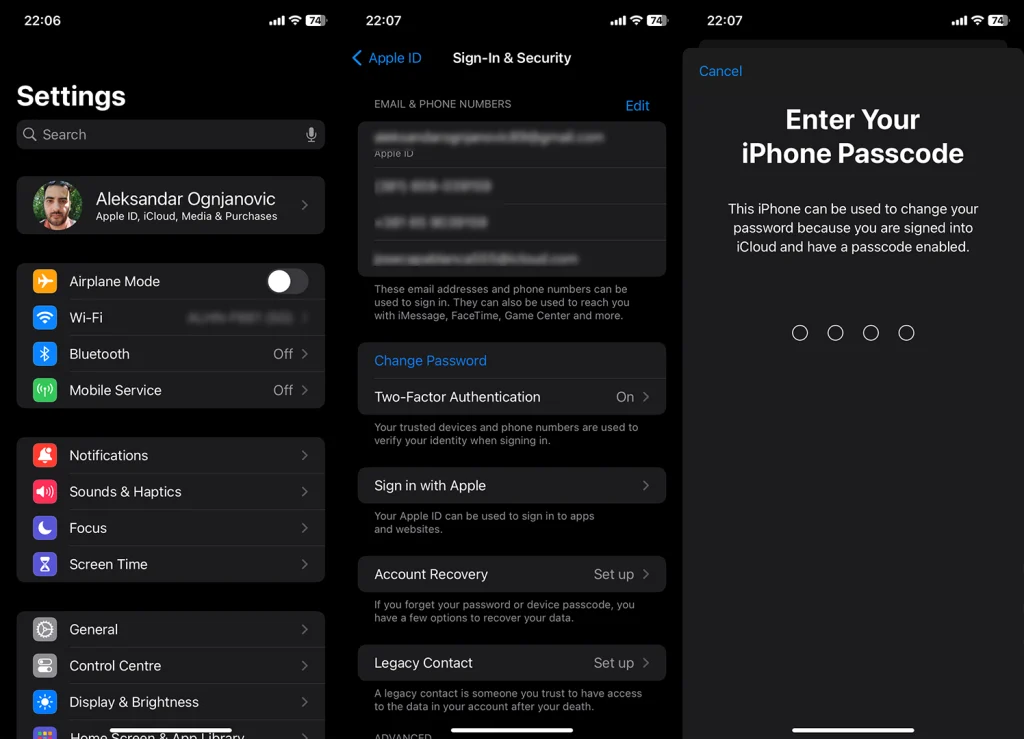
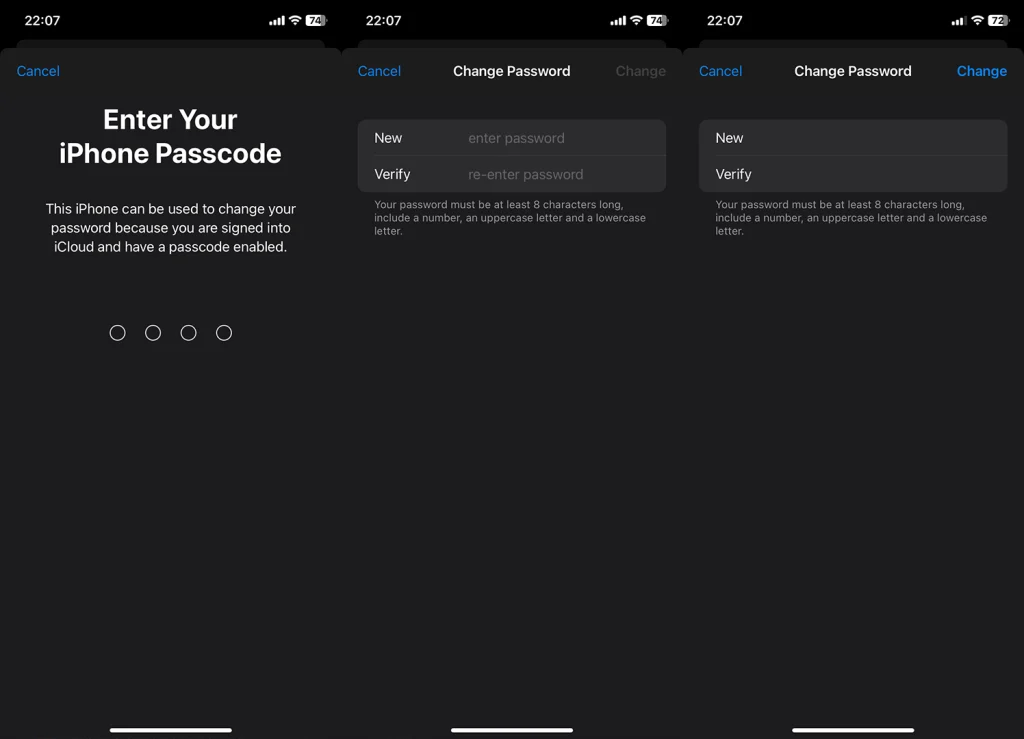
- Enter your Passcode, set a new password, verify it, and tap Change.


After changing your password, go to appleid.apple.com and open the Devices section. Remove anything you don’t recognize. This terminates active sessions on every signed-in device, not just your current one.
Enable Two-Factor Authentication under the same Sign-In & Security menu if it isn’t already on. Once enabled, Apple does not allow you to disable it.
Rapid Battery Depletion
Spyware and unauthorized background processes consume battery. If your phone is draining noticeably faster than usual without a change in your habits, that warrants a look.
Check Settings > Battery for per-app usage over the last 24 hours and 10 days. An unfamiliar app sitting near the top of that list is a red flag. 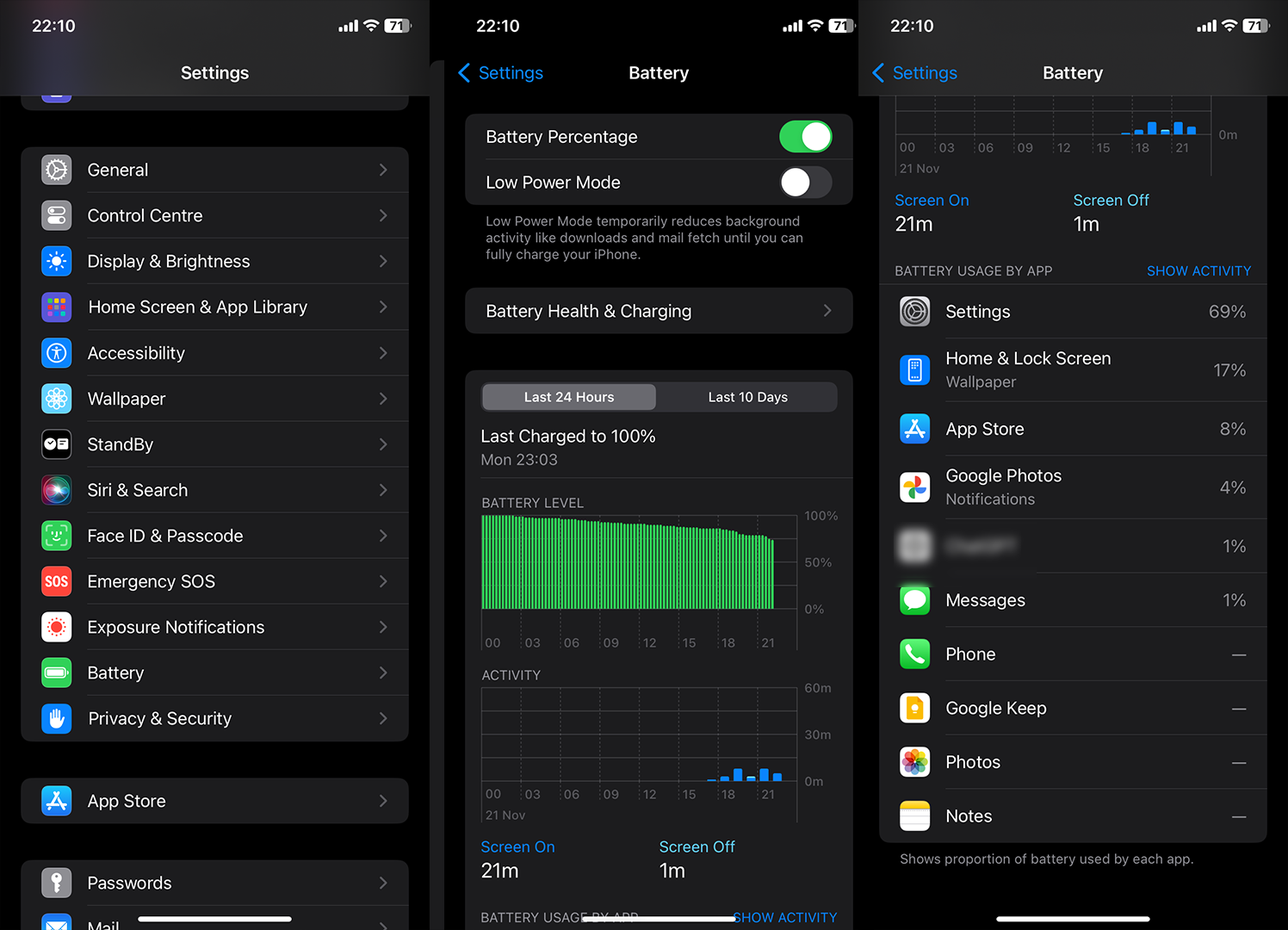
Remove suspicious apps via Settings > General > iPhone Storage. Tap the app and select Delete App. For apps you want to keep, review and restrict their permissions under Settings > Privacy & Security. 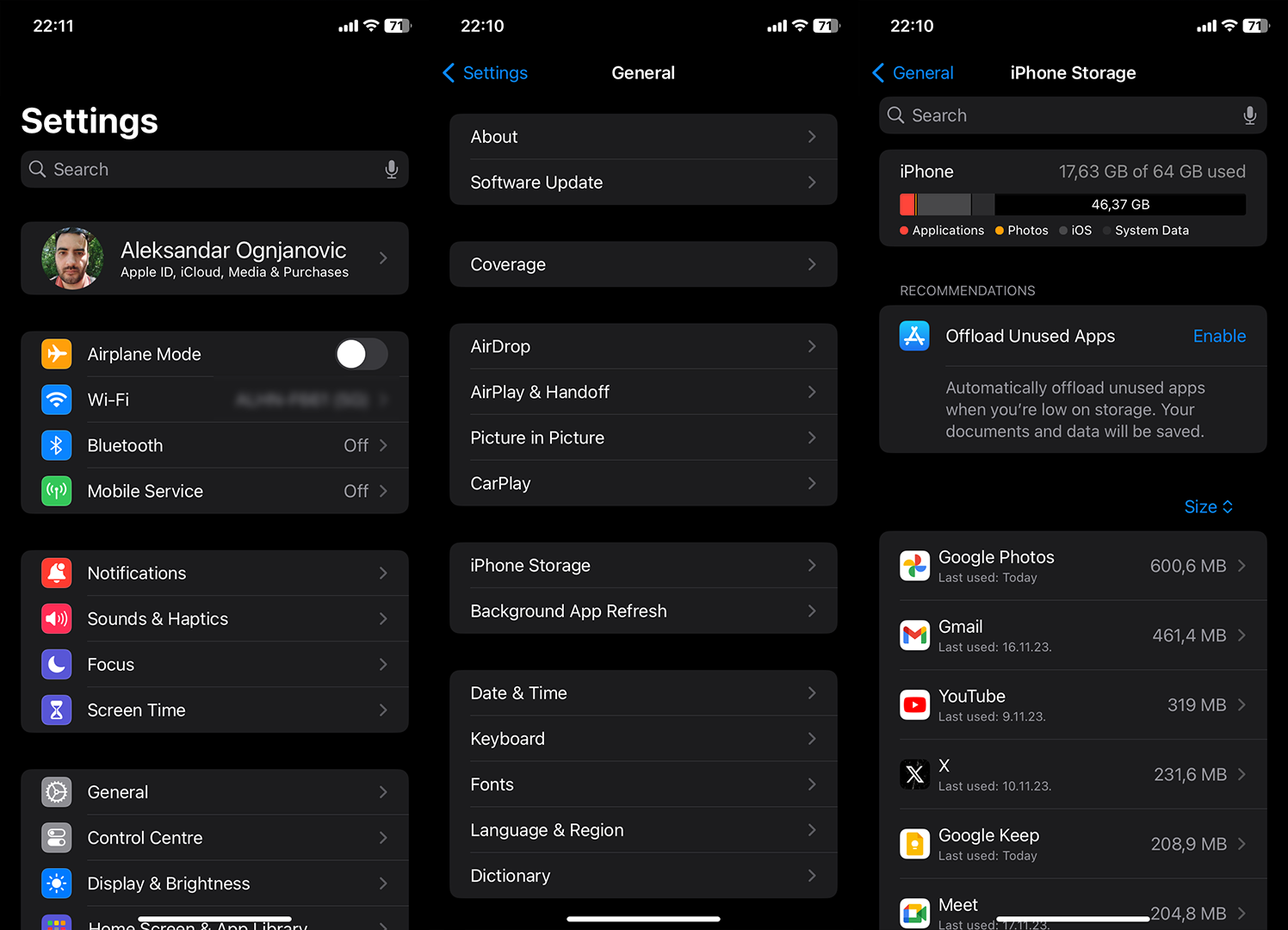
Excessive Data Usage
An app silently transmitting your data will show up in your cellular stats. Go to Settings > Cellular and scroll through the per-app breakdown. Any app with disproportionately high usage that you don’t actively use deserves scrutiny.
Scroll to the bottom of that screen and tap Reset Statistics at the start of each month. That gives you a clean baseline to compare against going forward. Apps you don’t recognize with any data usage at all should be removed immediately.
Unknown Applications
An app you don’t remember installing is a clear sign something is wrong. Review your full app list in Settings > General > iPhone Storage periodically and delete anything unfamiliar.
Only install apps from the App Store. Since iOS 17, alternative app marketplaces are permitted in the EU, but apps outside the App Store carry significantly higher risk and receive no vetting from Apple.
Jailbreak Detection
A jailbroken iPhone has its core security model stripped out. The presence of apps like Cydia, Sileo, or Zebra, which are package managers that only exist on jailbroken devices, confirms the device has been compromised at the system level.
If you didn’t jailbreak the phone yourself, change your Apple ID password immediately. Then go to Settings > General > Transfer or Reset iPhone > Erase All Content and Settings and do a full factory reset. Restore from a backup made before the jailbreak, or set up as new.
Suspicious Device Management Profiles
Device management profiles can give third parties deep access to your iPhone, including the ability to monitor activity, push apps silently, and restrict system features. Check Settings > General > VPN & Device Management for anything unexpected.
Legitimate profiles come from employers or schools, and you will remember agreeing to install them. Delete any profile you did not authorize. If the profile resists deletion, that is a serious indicator of a compromised device and a factory reset is the appropriate response.
Irregular iCloud Activity
Sign into appleid.apple.com and review the Devices list for hardware you don’t own. Also check icloud.com directly for unexpected files, photos, or notes.
Unusual iCloud activity, like logins from unfamiliar locations or file changes you didn’t make, indicates your account credentials are compromised rather than the device itself. Changing your Apple ID password and enabling Two-Factor Authentication under Settings > Your Account > Sign-In & Security > Two-Factor Authentication addresses this directly.
Anomalous Calls and Messages
Check your recent calls and sent messages for anything you don’t remember initiating. Malware can use your device to send messages or place calls without triggering any visible notification on your end.
Block any numbers involved via the Phone or Messages app. Then review your installed apps in Settings > General > iPhone Storage for anything unfamiliar. Regularly changing your Apple ID password limits the window any attacker has to operate.
Unexpected Two-Factor Authentication Prompts
Receiving a 2FA approval request you didn’t trigger means someone has your password and is actively attempting to sign in. Deny the request immediately. Do not approve any prompt you didn’t initiate, even if it appears to come from Apple directly.
Change your Apple ID password as described above as soon as this happens. If the prompts continue after a password change, your new password may already be compromised and you should treat the device itself as suspect.
Social Media Irregularities
Unauthorized iPhone access frequently extends to linked accounts. Posts, messages, or login alerts from social platforms that you didn’t create indicate either a compromised app or an active session someone else is using.
Change passwords for any affected accounts and review which apps have access under Settings > Privacy & Security. Revoke access for anything you don’t actively use or recognize.
How to Fully Secure Your iPhone After a Breach
If multiple signs above apply, a password change alone is not enough. The most reliable fix is a factory reset: back up to iCloud or a Mac first, then go to Settings > General > Transfer or Reset iPhone > Erase All Content and Settings.
When restoring, review which apps you reinstall and what permissions you grant. A breach is a useful forcing function to audit what actually needs to be on your phone. Keep iOS updated via Settings > General > Software Update. Security patches ship regularly, and running an outdated version leaves known vulnerabilities open.